
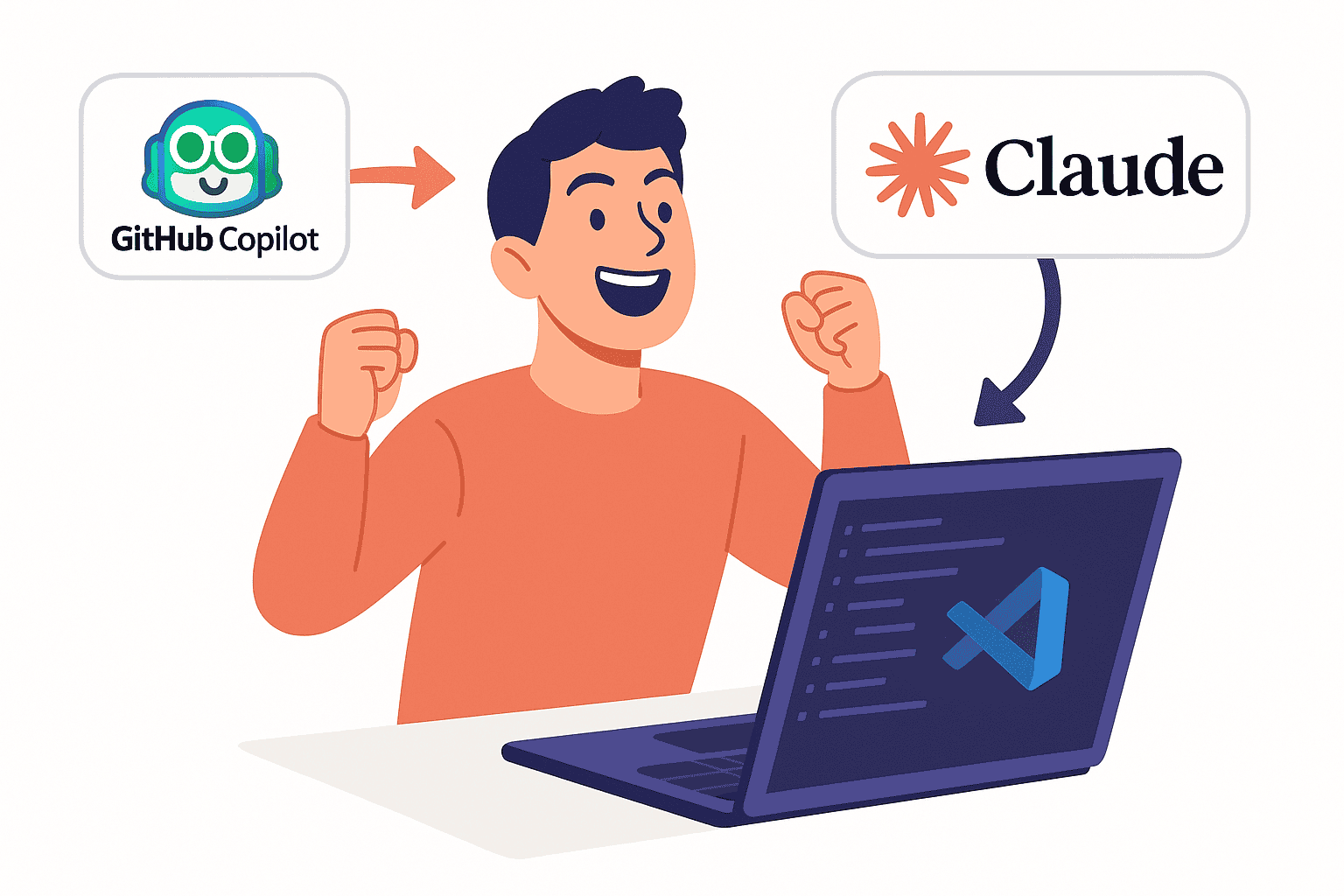

Migrating from GitHub Copilot to Claude Code in Visual Studio Code involves setting up a new AI coding assistant and adjusting your development workflow. Claude Code is an AI assistant by Anthropic that integrates into VS Code via an extension.
It offers developers a more agentic coding partner with capabilities beyond simple code suggestions. In this guide, we’ll cover how to install and configure Claude Code in VS Code, how to disable GitHub Copilot, and what changes to expect in your daily workflow. This documentation-style overview will help you seamlessly migrate to Claude Code and understand the new VS Code AI assistant setup.
Claude Code Capabilities in VS Code
Claude Code brings a wide range of AI capabilities directly into VS Code. Below is an overview of its features that developers can leverage:
Code Completion: Claude Code can generate code based on context or prompts, similar to how Copilot provided suggestions. You can ask Claude to implement a function or complete a code snippet, and it will produce the code for you. It uses Anthropic’s Claude models (with support for the latest model versions if you have a Pro/Enterprise plan) to ensure intelligent completions.
Inline Conversational Chat: Claude Code introduces a chat interface inside VS Code. By clicking the Claude icon (a spark icon in the sidebar), you open an inline chat panel where you converse with Claude in natural language. This lets you ask questions about your code, get explanations, or request code changes. The VS Code extension provides a dedicated Claude Code sidebar panel for these interactions, effectively bringing Claude’s conversational abilities into your editor.
Debugging Assistance: You can use Claude Code to help debug issues. For example, if you encounter an error or exception, you can paste the stack trace or describe the problem in the chat. Claude can analyze the error and suggest fixes or troubleshooting steps. It can even utilize debugging tools (with your permission) – for instance, running tests or commands to diagnose an issue. In practice, this feels like having an AI pair programmer who can investigate problems with you.
Repo-Level Analysis: Unlike Copilot which works primarily on the current file or prompt, Claude Code has awareness of your entire project. It can search through a large codebase to find references, usages, or relevant code across files. In fact, Claude Code is designed to handle “million-line codebases” and can instantly search or analyze them. This repo-level context means you can ask questions like “Where is function X defined?” or “How do we use library Y in this project?” and get informed answers.
Refactoring Flows: Claude Code can plan and execute refactoring tasks. For example, you can instruct it to rename a function or reorganize code, and it will determine all the places in the codebase that need to change. It prepares a plan (diff of changes) that you can review and approve. This automated refactoring flow turns what might be a tedious multi-step process into a single AI-assisted command. Claude’s ability to handle multi-file edits and maintain project-wide awareness makes such refactoring possible.
Multi-File Reasoning: Because Claude Code can read and modify multiple files in one session, it excels at tasks that involve coordinating changes across a codebase. It keeps track of context across files and can make changes spanning several components or modules. This multi-file reasoning is especially useful for implementing new features or making architectural changes that touch many parts of a project. Essentially, Claude acts as an AI agent that understands higher-level requirements and can carry them out across your project, including running build/test commands or updating documentation if needed (with your confirmation).
Together, these capabilities position Claude Code as more than just an autocompletion tool – it’s closer to an AI pair programmer that can manage entire features through conversation. Next, we’ll go through how to set up Claude Code and remove Copilot, then dive into how your workflow will change.
Installing and Configuring Claude Code in VS Code
Migrating to Claude Code begins with installing the VS Code extension and configuring it for use. Follow these steps to get started:
- Install the Claude Code Extension: Open the Extensions view in VS Code (usually by clicking the Extensions icon or pressing
Ctrl+Shift+X). Search for “Claude Code” by Anthropic. Click Install to add the extension to your VS Code. (Alternatively, you can find it on the Visual Studio Code Marketplace and install it from there.) Once installed, you should see a new spark icon in the Activity Bar – this represents Claude Code. - Authentication and API Access: After installation, the Claude Code extension will require access to an AI model. Typically, it will prompt you to log in to your Anthropic account or provide an API key. Claude Code uses Anthropic’s cloud models, so you need an Anthropic subscription or API access to use it (for example, a Pro, Team, or Enterprise plan, or a pay-as-you-go API key). Follow the on-screen instructions to sign in. If your organization uses a third-party cloud provider for Claude (such as AWS Bedrock, Microsoft Azure Foundry, or Google Vertex AI), you can configure the extension to use those. This involves setting specific environment variables in VS Code’s settings (e.g., enabling Bedrock integration or providing Azure resource details). For most individual developers, using the Anthropic account login is the straightforward route.
- Verify Extension Setup: Once logged in, you can verify Claude Code is ready by opening the Claude sidebar (click the spark icon). You should see the Claude chat interface in VS Code, indicating the extension is active. You might also see a welcome message or tips. At this point, Claude Code is installed and connected. (If the extension fails to load or Claude doesn’t respond, ensure you have VS Code updated to the minimum required version 1.98.0 or above, and that your internet connection is working.)
Configuration Options: Claude Code’s extension comes with some settings you can tweak. For example, by default it uses a graphical chat interface, but there is a setting Claude Code: Use Terminal if you prefer the old CLI-style interaction. You can also toggle between “Plan mode” (reviewing Claude’s plan before applying changes) and “Auto-accept mode” (applying changes immediately) within the extension UI. Initially, it’s advisable to use plan mode so you have control over changes – this is the default, where you get to review and edit Claude’s proposed diff before confirming it. We will discuss how these modes affect your workflow in the next section.
Disabling GitHub Copilot in VS Code
If you have been using GitHub Copilot, you’ll likely want to disable or remove it when switching to Claude Code to avoid conflicts or duplicate suggestions. Here’s how to turn off Copilot in VS Code:
- Disable the Copilot Extension: Open the Extensions view (
Ctrl+Shift+X) and search for “GitHub Copilot”. Click on the GitHub Copilot extension in the results, then choose Disable (or Uninstall if you prefer to remove it completely). VS Code may ask you to reload to apply the change. This stops Copilot from providing suggestions or appearing in your editor. - Turn Off Copilot Features in Settings (if needed): In some cases, VS Code might have built-in AI features or remnants of Copilot’s UI (for example, the Copilot chat button) still visible. You can go to Settings (
Ctrl+,) and search for “Copilot”. There is a settingchat.disableAIFeatureswhich, when enabled, will hide built-in AI chat/suggestions and effectively disable Copilot-related UI. Ensuring this is turned on can remove any Copilot chat icon or prompts from the interface. - Sign Out of Copilot (optional): If you were logged in to GitHub for Copilot, you can sign out from the Accounts menu in VS Code (especially if using VS Code’s built-in accounts management). This isn’t strictly necessary, but it can help make sure Copilot isn’t active. Also, if you had a Copilot subscription you no longer need, you might manage that on GitHub’s side. However, simply disabling the extension will suffice for the migration.
After doing this, you should no longer see Copilot suggestions or the Copilot chat in VS Code. All AI assistance will come through Claude Code instead.
This clean break ensures that Claude Code can take over without you accidentally accepting Copilot suggestions. (If you ever need to revert, you can re-enable the Copilot extension similarly, but running both assistants at once is not recommended.)
Changes in VS Code Workflow with Claude Code
With Claude Code enabled and Copilot disabled, the way you interact with an AI assistant in VS Code will change. The experience shifts from passive inline suggestions to an interactive, conversation-driven development approach. Below are the key workflow changes and how to adapt:
- Using the Claude Code Panel (Conversational Interface): Instead of seeing gray ghost-text suggestions as you type (as Copilot provided), you will now explicitly invoke Claude via the Claude sidebar panel. Click the spark icon to open the Claude Code chat interface whenever you need help. You will type requests or questions in natural language. For example, you might ask: “Write a Python function that parses a JSON config file and returns a dictionary”. When you send this prompt, Claude will analyze your request and the open file/project context, then suggest code or changes in the chat window. The conversation paradigm means you can have back-and-forth interaction: if the code it provided isn’t exactly what you wanted, you can clarify or ask Claude to adjust it. This is a more deliberate process than Copilot’s automatic suggestions, but it gives you greater control and the ability to discuss with the AI.
- Plan Review vs. Direct Edits: By default, Claude Code works in a “plan mode” where it drafts a set of changes for you to review. When you ask for a change (say, “refactor this function for clarity”), Claude might respond with a plan – essentially a diff or list of edits it proposes across one or multiple files. You can examine these proposed changes in the Claude panel. The VS Code extension even allows you to expand diff hunks and see the full context by widening the sidebar. Once satisfied, you click an “Apply” or “Accept Plan” button, and Claude will apply the edits into your editor. This differs from Copilot, where suggestions were applied line-by-line with a tab press. With Claude, you’re reviewing a batch of changes (like a mini pull request) and then applying them. This extra step gives you a chance to ensure the modifications meet your expectations. (There is an optional “auto-accept edits” mode which makes Claude apply changes as they come, but it’s recommended to use manual review at first).
- Multi-File and Project-Wide Changes: One of the most significant changes is that Claude can operate on your whole project, not just the current file. For example, if you ask “Add a new column to the User database model and update all related code,” Claude might modify multiple files: the model definition, migration scripts, and any code using that model. It will list all these file changes in the plan. With Copilot, you would have had to prompt for each file individually and piece it together yourself. Now Claude takes a higher-level instruction and figures out the needed edits across the project. This multi-file reasoning means your workflow becomes more about describing the change you want, and less about manually navigating and editing every file. After applying a Claude-generated change, it’s wise to run your tests – Claude can even execute commands if you allow it (e.g., running
npm testorpytest) to verify everything still passes. Always review multi-file changes carefully, just as you would review a teammate’s pull request. - Interactive Debugging and Queries: If you get stuck or encounter a bug, your instinct with Copilot might have been to look up documentation or try coaxing an inline suggestion by writing a comment. With Claude Code, you can directly ask the AI for help in the chat. For instance: “I’m getting a null pointer exception when clicking the Save button. What could be the cause?” Because Claude has context of your repository, it might ask to see relevant files or error logs. You can copy-paste the error stack trace into the chat, or use Claude’s file attachment feature (you can @mention a filename or attach it). Claude will then analyze the error in context, potentially identifying the cause (e.g., a variable not initialized) and even propose a fix. This interactive debugging assistance is more dynamic than Copilot’s model, which was limited to suggesting code – Claude can engage in a dialogue about the problem, not just the code, which can significantly speed up troubleshooting.
- Adjusted Prompting Style: One thing you’ll notice is you’ll be writing more instructions or questions to the AI, rather than writing a comment and hitting Tab for completion. Prompts in Claude Code are more like conversations: you describe what you need in detail. For example, instead of typing
// sort an array of numbersin code and expecting Copilot to fill it in, with Claude you might say in chat: “Sort the arraynumsin ascending order (in-place) and then return it.” Claude will then either show you the code snippet or directly edit the file to implement this, depending on context. The UX differs: Copilot’s strength was quick, inline code generation for small context, whereas Claude’s approach is to understand higher-level intent via conversation. In practice, this means you should be prepared to give more explicit instructions and context to Claude. The upside is that Claude can handle more complex requests in one go, and you can iteratively refine its output by simply continuing the chat. - Agentic Actions (Running Commands & Tools): Claude Code is designed to act autonomously in some cases. It can run terminal commands, create new files, or interact with version control, all with your permission. For example, after making code changes, Claude might suggest: “Tests are failing; shall I run
pytestto see the errors?” You can grant permission, and Claude will execute the command in an integrated terminal and then use the results to inform its next steps (perhaps fixing a failing test). This is a new kind of workflow: you’re delegating certain tasks to the AI assistant. Always use caution – only allow commands you understand, and review any changes – but this feature can save a lot of time on routine tasks (like running linters, tests, or even Git operations). - No Automatic Inline Suggestions: It’s worth noting that by switching off Copilot, you lose the automatic inline suggestions as you type. Claude Code’s extension currently does not pop up suggestions for every keystroke in the same way. The philosophy is different: Claude works with you through requests, rather than continually guessing what you might want next. Some developers miss Copilot’s inline completions for boilerplate or small patterns. You might compensate by asking Claude more direct questions (e.g., “Complete this function to do X”) whenever you need that kind of help. In the future, Claude Code may introduce more inline hint features, but as of now, its focus is on the chat-driven workflow. This means you might type more code on your own for trivial lines, but you’ll use Claude for significant chunks or non-trivial logic.
- Learning Curve: Finally, expect a brief learning curve as you adjust to Claude Code’s style. You’ll develop a sense for how to prompt it effectively (almost like learning to communicate with a very proactive pair-programmer). Instead of thinking “how do I get the AI to autocomplete this line?”, you’ll start thinking “how do I describe the change I want at a high level?”. Many developers report that they adopt a “code review” mindset – treating Claude’s output like a PR to review rather than writing every line themselves. This mindset shift is a key part of the workflow change: you become more of a director or reviewer of code, while Claude handles the heavy lifting of writing and searching.
Conclusion
Transitioning from GitHub Copilot to Claude Code in VS Code is a technical change that brings a new, powerful development experience. In summary, the migration involves:
Setting up Claude Code: installing the VS Code extension, logging into Anthropic (ensuring you have API access or a suitable plan), and confirming the extension is running.
Disabling Copilot: turning off the Copilot extension and any related settings so that VS Code exclusively uses Claude Code as the AI assistant.
Adapting your workflow: using the Claude sidebar for chat-based prompts, reviewing AI-proposed changes (especially multi-file diffs) before applying them, and leveraging Claude’s ability to understand entire projects and run commands. Your development becomes more conversational and plan-driven, as opposed to Copilot’s inline suggestion model.
By embracing these changes, you gain a robust AI partner that can handle not only code completion but also higher-level tasks like debugging, architectural changes, and refactoring. The user experience shifts from just speeding up typing to offloading larger chunks of problem-solving to the assistant. Remember to continue exercising judgment – review Claude’s code, test the changes, and guide it with clear requirements. With practice, you’ll find that Claude Code for developers can dramatically accelerate your work on complex codebases, all within the comfort of VS Code’s interface. Happy coding with your new AI pair programmer!