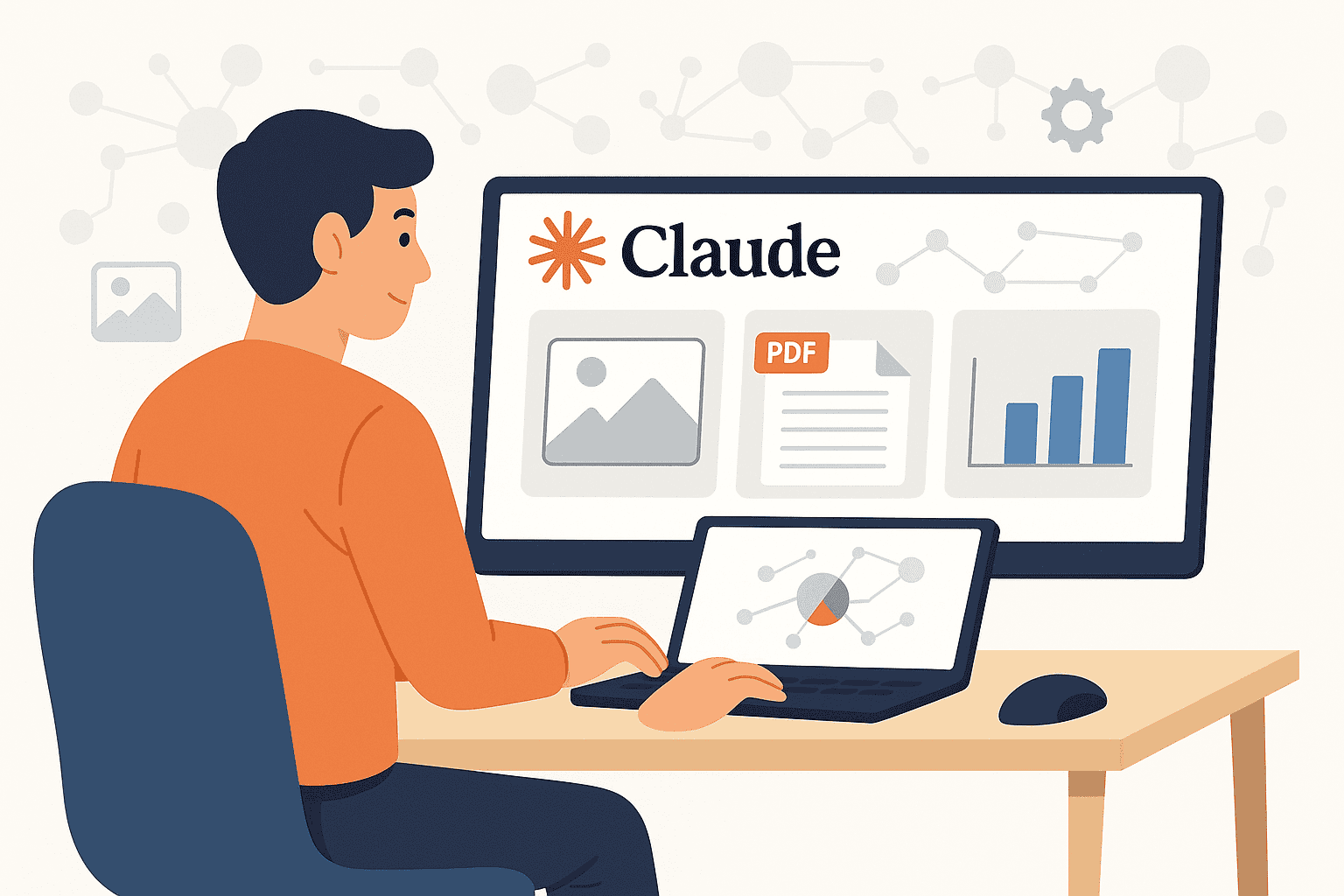

Claude Vision refers to the multimodal capabilities built into Anthropic’s Claude models, enabling them to interpret visual inputs (images, diagrams, and even PDFs) in addition to text. It is not a separate model or product – rather, it’s a feature available in advanced Claude models (notably the Claude 3.5 family and the Claude 4.x series). This means that models like Claude 3.5 “Sonnet” and the Claude 4 family can accept image/PDF uploads and analyze their content as part of a prompt.
With Claude Vision, you can have a single AI assistant digest a chart, read a scanned document, or review a design mockup alongside text instructions. Anthropic’s documentation confirms that the Claude 3 and Claude 4 model families introduced these vision capabilities, allowing Claude to understand and analyze images – opening up many multimodal use cases in professional workflows. In short, Claude Vision brings image understanding to the Claude platform, letting technical users interact with diagrams, screenshots, photos, and PDFs directly within the same conversation.
Critically, Claude Vision is integrated into the normal Claude API/interface – you simply attach files or image URLs to your prompt. It’s available via the Claude API (and UI) when using supported models (the latest Claude 3.5+ and 4.x versions) and does not require any separate computer vision service. This integrated design makes it seamless to ask complex questions that reference both textual and visual context.
For example, you could upload a PDF report containing charts and ask “What does the chart on page 5 indicate about Q3 revenue?” – Claude will “see” the chart and respond accordingly. By combining natural language understanding with image analysis, Claude Vision enables richer interactions – like interpreting graphs, transcribing text from a photo, or reasoning about a flowchart – all within one AI assistant. The remainder of this guide will dive into what Claude Vision supports, how to use it effectively, and practical use cases across industries.
Supported File Types and Limits
Claude Vision supports a range of file types and formats for visual input, with some important limits to keep in mind:
Image Formats: You can upload standard image formats including JPEG, PNG, GIF, and WebP for Claude to analyze. These could be photographs, screenshots, scanned documents (as images), diagrams, or any picture in those formats. The system can handle multiple images per request – on Claude’s web interface up to 20 images can be attached in one message, and via the API you can include up to 100 images in a single request. This is useful if you need Claude to compare or cross-reference images. All provided images will be analyzed jointly as part of the prompt.
PDF Documents: Claude also accepts PDF files directly. This is extremely powerful – you can feed Claude a PDF (such as a report or a contract), and it will process both the text and any visuals (charts, tables, images) inside the PDF. PDF support has some constraints: files must be standard (unencrypted) PDFs, up to 32 MB in size and with a maximum of 100 pages per request. (If you attempt to input a longer PDF, the content beyond ~100 pages will not be fully analyzed, so large documents should be split, as discussed later.) These limits include the entire request payload, so if you send a PDF along with other text or images in the same prompt, the total size must stay under 32MB. All active Claude models (Claude 3.x and 4.x as of 2025) support PDF processing, although enabling the full vision capabilities might require certain settings (for example, on some platforms like Amazon Bedrock you enable “full visual understanding” mode with citations). In short, Claude can ingest multi-page PDFs and treat each page as both text and image content.
Image Resolution and Size: For images, there are pixel dimension limits. Claude will reject any single image larger than 8000 × 8000 pixels (which is extremely high resolution). Moreover, if you send a large batch of images (more than 20 images in one API call), a stricter per-image size limit of 2000×2000px applies. Practically, you don’t need ultra-high-res images – Claude’s vision pipeline will downscale images whose long side exceeds ~1568 px to optimize processing. In fact, Anthropic recommends resizing very large images before uploading, since images above ~1.15 megapixels (e.g. >1568×1568) will be scaled down anyway and just slow the response with no added benefit. On the flip side, extremely small images (<200 px) in width/height may degrade performance – Claude might struggle to read tiny text or distinguish details if the image is too low-resolution. For best results, provide images that are clear and of reasonable size (not thumbnail-small, and not giant beyond 8k resolution). Claude also imposes a 32 MB overall payload limit (including images, PDFs, and text) in API calls, so very high-resolution images should be compressed or resized to stay within that budget.
How Claude Processes Visual Inputs: Under the hood, Claude treats images and PDFs a bit differently than plain text, but this is abstracted away from the user. When you attach an image, Claude’s vision module will analyze the image pixels directly (and also perform OCR if there’s text in the image). When you provide a PDF, the system will convert each page of the PDF into an image and also extract the text of that page, feeding both to the model. In other words, each PDF page is processed as a combination of its textual content and its visual content (layout, images, charts, etc.).
This allows Claude to answer questions not just about the raw text in a document, but also about tables, charts, or diagrams embedded in the PDF – a major advantage of Claude’s PDF support. The model effectively “sees” the page as if it were both reading it and looking at it, enabling queries like “In the figure on page 10, what trend is shown?” or “Extract the data from the table on page 3.” Because of this approach, a PDF with images uses more tokens than text alone (since each page image consumes tokens similar to an uploaded image). But it lets Claude grasp the full layout and visual context of the document.
Summary of Limits: In practical terms, you can feed Claude most common image files and PDFs. Stay within 32MB per request, 100 pages per PDF, and preferably under ~1.5 megapixels per image for efficiency. Claude 3.5/4 can handle multiple images at once, and will combine visual analysis with text analysis. If these limits are exceeded (e.g. a 200-page PDF), you’ll need to split or downsize input (we’ll cover strategies later). Now that we know what we can upload, let’s explore real-world use cases for Claude Vision across different media types.
Real-World Use Cases by Media Type
Claude Vision unlocks a broad set of use cases. We’ll examine practical examples by media type: images, PDFs, and diagrams/visual schematics. These examples are especially relevant for developers, analysts, and professionals who have to deal with visual data in their day-to-day tasks.
Image Use Cases (OCR, Screenshots, UI, Photos)
Images are everywhere – from photos and scanned documents to user interface screenshots. Claude Vision can serve as a versatile assistant for many image-based tasks:
Optical Character Recognition (OCR): Claude can read text from images, even if the image is a photograph of text or a scanned document. This means you can screenshot a portion of a document or take a picture of a sign/receipt, and ask Claude to transcribe it or answer questions about it. For example, a logistics coordinator could snap a photo of a shipping label or invoice and have Claude extract the tracking number and address. Claude’s OCR is quite robust and can often handle imperfect images (like slightly blurry scans or photos taken at an angle) – one report noted that Claude 3.5’s vision system was accurately transcribing text from low-quality images, a capability crucial for sectors like retail, logistics, and finance where you deal with a lot of unstructured image data. This makes it a powerful tool for automating data entry from paper documents. (Do note though: if the image text is extremely blurry or handwritten in cursive, accuracy may drop – we discuss limits later.)
Screenshot Analysis (UI/UX Review and Debugging): Developers and designers can leverage Claude to analyze screenshots of applications or websites. For instance, a front-end developer could provide a UI screenshot and ask Claude for a critique of the layout or to identify accessibility issues (“Do you see any contrast problems in this UI?”). Claude can interpret the interface elements it “sees” and provide feedback, almost like a quick UI/UX audit. Testers might paste an error dialog screenshot and ask Claude what it means or how to fix the error. Because Claude does not have native knowledge of your app, this works best when the screenshot itself contains the relevant info (e.g. error codes, visible design patterns). Still, it can save time – instead of describing a UI problem in text, you can show Claude the screenshot and let it point out issues or suggest improvements. This visual troubleshooting can be faster than manually explaining what’s on your screen.
Photo Captioning and Interpretation: If you provide a photograph (say for social media alt-text generation or creative use), Claude can generate a descriptive caption or identify key elements in the scene (within policy limits). For example, you could upload a photo of an office and ask Claude to describe it (“It looks like a conference room with a long table, several chairs, a projector screen, and a potted plant in the corner.”). This can aid in creating alt text for images or getting a quick sense of an unfamiliar image. However, Claude will not identify people in photos (it won’t tell you “this is Alice and Bob”) and it avoids any sensitive attributions like guessing someone’s identity or age. But for general scene description or object recognition, it’s quite capable. Business analysts might even use this for simple tasks like uploading a chart screenshot (as an image) and asking Claude to summarize the chart (though attaching the source data or PDF might be better quality, the option exists).
Diagram and Chart Understanding: (We will cover detailed “diagram” use cases separately below, but it’s worth noting here too.) If you have an image of a chart, graph, or technical diagram, Claude can interpret it. For example, a data scientist could paste a graph image (perhaps from a report) and prompt Claude to explain the trends. Claude 3.5 was noted as being particularly strong at interpreting complex charts and graphs compared to prior models. This extends to things like flowcharts or mind maps exported as images – Claude can walk through the flowchart steps and summarize the process it represents, effectively doing a visual analysis of structured diagrams.
Visual Content Moderation and QA: In some cases, you might use Claude to examine images for certain criteria. For instance, an e-commerce company could feed product images to Claude and ask if they meet certain guidelines (no watermarks, correct logo placement, etc.). Or an AI researcher might generate images and have Claude label what each image contains as a form of evaluation. Since Claude Vision has a general understanding of images, you can tailor prompts to your needs (keeping in mind it won’t do face recognition or anything disallowed). This isn’t a replacement for dedicated image classifiers, but for quick ad-hoc checks or extracting descriptive information from images, it’s very useful.
PDF Use Cases (Summaries, Data Extraction, Reports)
PDF support in Claude opens up document understanding tasks that were historically very time-consuming. Claude essentially acts as an intelligent document assistant that can read, summarize, and extract information from PDFs including their visual components. Here are key use cases:
Summarizing Reports and Articles: You can upload lengthy PDF reports – annual financial statements, research papers, technical whitepapers, etc. – and ask Claude to summarize them or specific sections. For example, “Summarize the key findings of this 50-page financial report” will prompt Claude to read through and produce a concise summary of each section. This is incredibly useful for analysts who need to digest long documents quickly. Claude can even do section-by-section summaries or bullet-point outlines (“Summarize each chapter of this document”). Because Claude can handle around 100 pages per PDF, many standard reports fit in one go. If something is not clear in the summary, you can follow up: e.g. “What does the chart on page 17 show?” and Claude will refer to that page’s content (it has both the text and visual of the page in context). This turns static PDFs into interactive resources.
Question-Answering and Research: Beyond summaries, you can perform Q&A on a PDF. For instance: “According to this contract PDF, what is the term of the agreement and its governing law?” Claude will locate that information from the text. Or “In the attached research paper PDF, what experiment results are shown in Figure 2 and what do they mean?” – Claude will examine the figure (since it sees images in the PDF) and the caption/text to give an answer. This works even with multi-column documents or complex layouts, as Claude’s vision processing tries to maintain the logical reading order. If Claude’s answer seems off due to layout (say columns read in wrong order), you can clarify by referencing the part (“Check the right column of page 4…”). Generally though, Claude’s PDF vision is built to handle typical layouts of business and academic documents, including charts and tables. This makes it a boon for researchers and analysts: you can interrogate a document for the details you need without manually skimming through it all.
Extracting Key Information (Contracts, Forms, Compliance): One very practical use is pulling out specific data points or clauses from documents. Imagine feeding in a standard form or contract and asking, “What’s the jurisdiction clause in this contract?” or “Extract the lease start date and end date from this PDF.” Claude can zero in on the relevant text and return it, or even output it in a structured format if asked. Anthropic’s examples suggest use cases like extracting key information from legal documents (e.g. finding specific clauses). Another example: processing financial statements – you could ask “What was the net income in 2023 according to this P&L statement PDF?” and Claude will look at the table or text where that appears. If the PDF contains tables (like a balance sheet), Claude can read the numbers from the table. This greatly accelerates tasks in finance and legal domains, where a lot of time is spent hunting through PDFs for important details.
Analyzing Charts and Tables in PDFs: Many PDFs (annual reports, research papers, slide decks converted to PDF) contain charts, graphs, and data tables. Claude’s multi-modal analysis means it can interpret those as well. For example, if an earnings report PDF has a bar chart of quarterly revenues, you might ask “Describe the trend shown in the revenue chart on page 5” – Claude will interpret the chart image and provide an insight (“It shows revenue increasing each quarter, from X in Q1 up to Y in Q4, indicating accelerating growth.”). For tables, you can request extraction: “List all itemized data from the table on page 4 as JSON.” If prompted explicitly, Claude can output structured data from a table. For instance, it might produce a JSON array of objects, or a CSV-like output, with the table’s rows. This turns a static table in a PDF into machine-readable data without manual re-entry. You should instruct the format (“as JSON” or “in CSV format”) and Claude will do its best to comply. Keep in mind complex tables might need some cleanup, but it’s a fantastic starting point for automating data extraction.
Multilingual Document Translation: Claude supports multiple languages, so you can also use Vision on non-English PDFs. For example, a business analyst could upload a financial document in Spanish or Japanese and ask Claude to summarize it in English. Or ask specific questions in English about a foreign-language PDF – Claude will translate as needed to provide the answer. This is useful for global companies dealing with documents across languages. (One should still have a human review critical translations, but Claude can significantly speed up understanding foreign documents.)
Combined Formats (Embedded Images): PDFs often contain embedded images, diagrams, or scanned pages. Claude can handle these within the PDF context. For instance, a healthcare PDF might include an image of a lab result chart – Claude will treat that like any other image and can describe or interpret it if asked. This holistic view – combining text and visuals – means Claude “understands” the document in a way a pure text parser would not. Users have reported that being able to ask Claude questions about charts and graphs in PDFs directly (without manual data extraction) is a significant advantage. It’s like having a smart assistant who reads the entire report for you, figures and all.
Diagrams and Schematics Use Cases (Flowcharts, Architecture Diagrams)
Diagrams – whether a simple flowchart drawn on a whiteboard or a complex network architecture – convey structured information visually. Claude Vision can interpret these diagrams, which unlocks some advanced use cases for developers and engineers:
Flowchart Understanding: If you feed Claude an image of a flowchart (for a business process or algorithm), it can walk through the flow and explain it in natural language. For instance, you might show Claude a flowchart of an employee onboarding process and ask, “Explain this workflow.” Claude will identify the steps and their order (“First, the manager submits a request, then HR approves it, then IT sets up accounts, finally an orientation is scheduled, as shown in the diagram.”). This is useful for quickly documenting processes – Claude essentially reads the flowchart for you. You can also query specific branches: “What happens in the flowchart if the payment is declined?” and Claude will refer to that decision point in the diagram. It’s a quick way to extract logic from visual workflows or to verify if the diagram matches the intended process.
Software Architecture & Schematics: Developers can leverage Claude for architecture diagrams (such as cloud infrastructure designs, network topologies, UML diagrams). Provide the diagram image and prompt Claude with tasks like: “List the components in this architecture and their interactions,” or “Convert this architecture diagram into a description of the system.” Claude will identify elements (servers, databases, services, arrows showing data flow) and summarize how the system is structured. An exciting advanced use: you can have Claude generate code or configuration from a diagram.
For example, AWS demonstrated using Claude 3’s vision to read an AWS architecture diagram and produce an initial CloudFormation template (infrastructure-as-code) corresponding to that diagram. Essentially, Claude looked at a hand-drawn AWS architecture (like the one above) and then, through a combination of vision and few-shot prompting, generated the boilerplate cloud infrastructure code for it. This is a cutting-edge workflow, but it showcases the potential – architects can sketch something out and get a head start on code. Similarly, a team could diagram their database schema or UML class diagram and have Claude produce descriptions or even stub code. While results may need refinement, it accelerates the prototype phase dramatically.
Circuit and Engineering Schematics: For those in engineering fields, Claude might be used to interpret simpler schematics – for example, a circuit diagram. You could show a schematic and ask Claude to explain the circuit’s operation (“This diagram shows a resistor and LED in series with a battery; when the switch is closed, current flows and the LED lights, etc.”). Or a mechanical diagram might be described in words. That said, extremely technical diagrams with lots of symbols might challenge the model, but it can handle many technical diagrams and charts as noted in Anthropic’s documentation. At the very least, it can identify labeled parts and read any text annotations on the schematic.
Organizational Charts / Mind Maps: Another diagram type is org charts or mind maps – Claude can read those too. For example, an org chart image could be parsed: “Summarize the reporting structure in this org chart.” Claude will read the names/roles and hierarchy from the chart and produce a summary (though privacy note: it won’t identify photos of people, but if the org chart is text boxes with names, it will read them). Mind maps or concept maps can similarly be summarized or converted into linear outlines.
In summary, any diagrammatic or visual schematic that you can feed as an image, Claude will attempt to interpret. This bridges a gap – turning visual structures into text – which is valuable for documentation, generating code, or simply understanding a diagram someone else created. The key is to prompt clearly (e.g. “explain this diagram step by step” or “generate code based on this diagram,” giving any needed context). Claude’s multimodal reasoning was specifically improved to handle tasks like interpreting charts and multi-step diagrams with quantitative reasoning by the Claude 4 generation.
This makes it an extremely useful ally for developers, solution architects, and analysts who regularly work with visual designs and need to integrate them into their workflows.
Prompting Techniques and Best Practices
Getting the most out of Claude Vision often comes down to how you prompt it with your images or PDFs. Many text-based prompt engineering principles carry over, but there are additional best practices for multimodal prompts. Here we outline techniques for structuring prompts, decomposing tasks, extracting structured data, and iterating effectively with Claude Vision.
- Use an “Image-Then-Text” Prompt Structure: When including images or PDFs in a prompt, place the visual content first, followed by your text instructions/questions. This ordering gives the best results. For example, if you’re using the API, your user message content might be an array like
[{"type": "image", ...}, {"type": "text", "text": "Your question or task"}]. Likewise in the chat UI, attach the image/PDF before typing your question. Claude will still work if you put text then image, but Anthropic notes it performs best when it “sees” the image and then immediately gets the question about it. So a good habit is: attach all relevant images/documents, then in the same message write your prompt referencing them (e.g. “Attached is [diagram/PDF] – please analyze it and answer X.”). - Be Explicit and Clear in Your Request: Clearly state what you want Claude to do with the visual input. Don’t just say “Look at this image” – give a specific task or question. For instance: “Describe the contents of this chart and what insights we can draw,” or “Extract the total invoice amount from the attached receipt image.” The more direct and specific your instruction, the better Claude can focus its analysis on the relevant aspects. If only part of the image is relevant (say one section of a screenshot), describe it: “In the attached UI screenshot, check the top navigation bar – is there a logout button present?” Being explicit helps because it guides Claude’s attention within the image. Also, mention formatting in the prompt if needed – e.g. “Answer in JSON format” or “List your findings in bullet points.” Claude will adhere to format instructions, which is crucial for structured outputs. In summary: treat the visual just like part of your context, and ask for exactly what you need.
- Prompt Decomposition (Break Down Complex Tasks): If your overall task is complex, consider breaking it into a sequence of simpler prompts. For example, suppose you have a photo of a whiteboard with a complicated diagram and you ultimately want a detailed analysis. You might first ask, “Describe everything you see in the image,” letting Claude enumerate the elements. Then follow up with specific questions like “Okay, now given that diagram, what are the steps to achieve X?” Similarly, with a long PDF, you might first ask for a summary, then ask targeted questions about sections. This iterative approach helps because the first prompt can surface all relevant info, and subsequent prompts can delve deeper or clarify ambiguities. Claude’s responses can also reveal if it misinterpreted something initially, giving you a chance to correct it with a refined question (“You mentioned X in the image, but actually that’s not what I meant – look at the top-right corner… what does that part show?”). This kind of clarification chaining is often necessary when dealing with complex visuals or when high accuracy is needed. Don’t hesitate to use multi-turn dialogue: you can have a back-and-forth with Claude about an image just like you would about a text topic.
- Reference Visual Details by Names/Labels: If the image or PDF has identifiable sections (like page numbers, figure labels, or obvious components), use those references in your prompt. For PDFs, always cite the page number if your question is specific (“On page 10, what does the first paragraph state about revenue?”). Claude is aware of page breaks and will use them to navigate the content. In diagrams, if there are labels or titles, you can mention them (“In the flowchart titled ‘Payment Process’, what happens after ‘Payment Authorized’?”). This anchors Claude’s attention to the right area. If the image has no explicit labels, you can describe the region: “Look at the bottom left of the image – what is written there?” or “There’s a red stamp in the image – can you read it?” Spatial referencing can be tricky (Claude isn’t pixel-coordinate precise), but general area descriptions can help. Using logical references (like PDF page numbers, figure captions, or UI element names) is more reliable.
- Leverage Vision-Friendly Prompt Patterns: Several effective prompt patterns have emerged for multimodal inputs: “Describe then Answer” pattern: You can prompt Claude to first describe the visual in detail before answering a specific question. For example: “First describe everything you observe in the image, then answer the question: [question].” This forces Claude to articulate its interpretation explicitly, which can increase accuracy and transparency. It’s a bit like asking it to think aloud about the image before committing to an answer. Table extraction pattern: If you want a table from an image/PDF, instruct something like: “Extract the table on page 2 and format it as CSV (first row headers).” Claude will try to literally pull the table data. It often helps to say “only output the CSV, no other text” to avoid extra commentary. Similarly for JSON, you can say “Output the result in JSON format with keys: […]” and maybe ask it to put it in a code block. This ensures the answer is easy to parse.Summarize visual content pattern: E.g. “Explain this diagram as if describing it to someone over the phone.” This prompt encourages Claude to be thorough and clear in describing the visual because it imagines the reader can’t see it. It’s a neat trick to force completeness.Iterative focusing: Another pattern for busy images is to ask: “List the distinct elements or sections you see in the image,” and then query about one element identified. This is useful if an image is complex (say a dense infographic). Claude might respond with “I see a title saying X, a chart showing Y, and a paragraph of text about Z.” Then you can ask follow-ups on each part.These patterns aren’t official names, but they illustrate structured ways to query images. Many are analogous to text prompt patterns (e.g. chain-of-thought, which we essentially did by “describe then answer”). The key takeaway: guide Claude’s vision analysis with a structured approach when needed, especially for complex tasks.
- Use System or Role Instructions if Helpful: In the API you can provide a system message or in Claude’s UI, a “conversation setup” that defines a role. For example, you might set the system message to “You are an OCR assistant that extracts text from images and formats it cleanly.” Then every time you give an image, it will bias Claude towards just extracting text. Or “You are a UX reviewer bot” to bias it toward finding issues in UI screenshots. Role-play can shape the style of analysis. However, use this carefully and test, as overly strict roles could cause Claude to stick to a pattern that might not fit all images. Generally, straightforward instructions in the user message suffice, but role instructions can add consistency across multiple prompts.
- Multi-Modal Chains and Memory: Remember that Claude has conversation memory (up to its context limit, which is huge in Claude 4 – hundreds of thousands of tokens). If you upload multiple images over a conversation, Claude will remember earlier ones unless you explicitly clear context. This means you can do something like: first message: attach image A and analyze it; second message: attach image B and ask to compare it to A (without re-uploading A). Claude will recall image A’s content from the previous turn and can compare/contrast. This chain can be extended to PDF + image: for instance, upload a PDF, get some info, then show an image and ask if it relates to something in the PDF. Claude’s large context window is very advantageous here, essentially letting you build an understanding across multiple files or modalities in one thread.
- Verification and Fact-Checking: Finally, always verify critical info. Claude might sometimes misread a visual (especially if low quality or very complex), so it can state an incorrect number or misidentify an object. If the stakes are high (financial figures, legal terms), double-check the output against the source or have Claude quote the source text. You can even ask it to provide the text it saw: “Quote the sentence in the PDF that mentions the deadline.” This can reduce hallucination, since Claude will pull the exact text from the document. In summary, use the AI’s capabilities to get quick analysis, but have a human in the loop for sensitive tasks – a general best practice.
By following these prompting techniques – clear structured prompts, iterative breakdown, and careful referencing – you’ll get much more reliable and useful outputs from Claude Vision. Next, let’s see how to actually implement some of these prompts using the API with Python and JSON.
Python API and JSON Request Examples
Claude Vision can be accessed programmatically via Anthropic’s API, allowing you to integrate image/PDF analysis into your applications or workflows. In this section, we’ll go through examples of structuring multimodal requests in JSON and demonstrate how to get structured outputs (like JSON/CSV) from visual content. We assume you have an API key and access to a Claude model that supports vision (e.g. claude-4 or claude-3.5 variant).
Uploading an Image via API (JSON structure)
When sending an image in the API’s messages payload, you include it as a content item of type "image". For example, here’s a simplified JSON for a user message that gives Claude an image (by URL) and asks a question about it:
{
  "model": "claude-4",
  "max_tokens": 1000,
  "messages": [
    {
      "role": "user",
      "content": [
        {
          "type": "image",
          "source": {
            "type": "url",
            "url": "https://upload.wikimedia.org/wikipedia/commons/a/a7/Camponotus_flavomarginatus_ant.jpg"
          }
        },
        {
          "type": "text",
          "text": "Describe this image and identify the insect."
        }
      ]
    }
  ]
}
In this example, the user’s message content consists of two parts: first an image (provided via URL to an ant photo), then a text prompt “Describe this image and identify the insect.”. Claude will receive both the image and the text prompt together. You could also use "source": {"type": "base64", "data": "<BASE64_STRING>", "media_type": "image/jpeg"} if you have the image data instead of a URL. The response from Claude would come as a typical completion, e.g. it might say “The image shows a close-up of a black ant with yellow markings. The insect appears to be an ant, possibly a species of carpenter ant.” (Claude would not literally identify the exact Latin name unless sure, but you get the idea.)
To include multiple images, you can add multiple { "type": "image", ... } entries in that content array (up to 100 via API). Claude will consider all of them. Just be mindful of token cost – each image will consume tokens when encoded (roughly width×height/750 tokens per image as per Anthropic’s formula).
For uploading images via Python, you might use the requests library. A quick example (pseudo-code):
import requests
import base64

api_url = "https://api.anthropic.com/v1/messages"
headers = {
    "x-api-key": API_KEY,
    "content-type": "application/json",
    "anthropic-version": "2023-06-01"
}
image_data = open("diagram.png", "rb").read()
b64_data = base64.b64encode(image_data).decode('utf-8')
payload = {
    "model": "claude-4",
    "max_tokens": 1000,
    "messages": [{
        "role": "user",
        "content": [
            {
              "type": "image",
              "source": {"type": "base64", "media_type": "image/png", "data": b64_data}
            },
            {"type": "text", "text": "What does this diagram illustrate? Please give a step-by-step explanation."}
        ]
    }]
}
resp = requests.post(api_url, headers=headers, json=payload)
print(resp.json()["completion"])
This would encode a local diagram.png to base64 and send it. The completion in the response JSON would contain Claude’s answer (as a string).
Anthropic’s API and SDK also support a Files API for images, where you can upload an image once and reuse it via a file_id in multiple prompts. This is useful if you need to reference the same image repeatedly without re-uploading (and it saves on token costs if you hit it often). The above snippet shows a direct inline approach for simplicity.
Uploading a PDF via API (JSON structure)
Sending a PDF is similar, but you use content type "document" for the file. Here’s an example JSON payload for a user prompt with a PDF (by URL) and a question:
{
  "model": "claude-4",
  "max_tokens": 1000,
  "messages": [
    {
      "role": "user",
      "content": [
        {
          "type": "document",
          "source": {
            "type": "url",
            "url": "https://example.com/sample_report.pdf"
          }
        },
        {
          "type": "text",
          "text": "Summarize the key insights from this PDF and list any figures mentioned."
        }
      ]
    }
  ]
}
Claude will fetch the PDF from the URL and process it (assuming it’s accessible and under size limits). Alternatively, for a local PDF you’d do the base64 encoding and use "type": "base64", "media_type": "application/pdf", "data": "<...>" similar to images. The response might be a summary of the PDF’s content with any important numbers or figures noted.
Using Python, one could read a PDF file in binary, base64 encode it, and send it just like the image example. Keep in mind PDFs can be large; ensure you chunk or stream if needed and stay under 32 MB.
One cool trick: because Claude treats each PDF page as image+text, you can actually request very specific outputs. For example, say you have a form or structured document and you want certain fields extracted. You can prompt: “Extract the values of the fields ‘Name’, ‘Account Number’, and ‘Balance’ from the attached PDF. Return the results as a JSON object with keys name, account_number, balance.” Claude will then parse the PDF and attempt to find those fields (by label) and output something like {"name": "John Doe", "account_number": "123456789", "balance": "$5,000"}. This uses both its vision (to match labels on the form) and text reading. It’s often shockingly effective for standard forms, though not 100% guaranteed – but with error handling you could verify the JSON keys are filled. This shows how you can integrate Claude’s PDF reading with programmatic needs: essentially performing on-the-fly document data extraction into structured formats.
For tabular data, you might ask for CSV. If you say “Output as CSV”, Claude might produce a nicely comma-separated list of rows. Just ensure to specify if you want headers or not, and maybe ask it to put it in a “`csv code block for easy parsing. Using the “increase output consistency” techniques (like providing a template or using JSON formatting expectations) can improve reliability.
Structured Output Formatting
Claude is quite good at following format instructions. To reliably get JSON/CSV:
- JSON: It helps to explicitly say “Respond with JSON only. Do not include any explanatory text.” and perhaps give a short example of the desired JSON structure in the prompt (if complex). Claude will usually obey and produce valid JSON. The docs suggest using tools or specifying a JSON schema in the prompt if strict format is needed. If the JSON is part of a larger conversation, you can also wrap the answer request with something like
<assistant>You should output a JSON only...</assistant>but usually plain instruction works. - CSV/TSV: Similarly, say “Provide the output in CSV (comma-separated) format with headers X, Y, Z.” If the data contains commas, maybe TSV is safer: “tab-separated values”.
- Markdown considerations: In the chat UI, Claude might return JSON inside a markdown block by default. If you want to avoid markdown formatting, you can instruct it not to, or just parse the content from the API without rendering. Usually it’s fine.
Example: Suppose you have an image of a table. You prompt: “Here’s an image of a table. Please extract its contents and output as JSON with keys Model, BLEU_EN_DE, BLEU_EN_FR, TrainingCost_EN_DE, TrainingCost_EN_FR for each row.” Claude will read the table and might output:
[
  {
    "Model": "ByteNet [18]",
    "BLEU_EN_DE": 23.75,
    "BLEU_EN_FR": null,
    "TrainingCost_EN_DE": null,
    "TrainingCost_EN_FR": null
  },
  {
    "Model": "Deep-Att + PosUnk [39]",
    "BLEU_EN_DE": null,
    "BLEU_EN_FR": 39.2,
    "TrainingCost_EN_DE": null,
    "TrainingCost_EN_FR": 1.0e20
  },
  ...
]
This is an example adapted from a real scenario where Claude Vision was used to extract a research paper table – it returned the table in markdown which we here illustrate as JSON for clarity. You can see some values were null where the table cells were blank, and large scientific notation numbers came through. The JSON approach would make it easy to feed into a script for further analysis.
Of course, your results may vary and some cleanup might be needed (Claude might occasionally make formatting mistakes or miss a row as it did in one test), but the fact that you can even get structured output directly is a huge time-saver. If Claude misses something, you can try tweaking the prompt or splitting the table into smaller chunks.
In summary, using Claude’s API for vision involves constructing the right JSON payload with image or document content types, and giving clear instructions on what you want from those inputs. The above examples should serve as templates to get started. Now that we can use Claude Vision and get outputs, let’s discuss how to prepare your images/PDFs for the best results and how to handle any limitations or errors.
Tips for Preprocessing Images and PDFs
Before you send your visual data to Claude, a bit of preprocessing can go a long way in improving performance and accuracy. Here are some best practices for prepping images and PDFs for Claude Vision:
Resize or Compress Large Images: As mentioned, extremely high-resolution images will be downscaled by Claude, which adds latency. If you have a huge image (say a 10 MB 8000×8000 photo), consider resizing it to around 1 megapixel (e.g. ~1000×1000 or a bit larger) before uploading. This will reduce the token usage and speed up the response (lower time-to-first-token latency). You won’t lose important information with a moderate resolution like ~1500 px width for most images.
Also, using JPEG with reasonable quality (70-80%) for photos can drastically cut file size compared to PNG, without much visible loss. For diagrams or screenshots, PNG is fine (or even GIF for simple ones), but if they are large, you might convert to JPEG if color depth isn’t critical. Remember the 32 MB limit – so if you have many images, each should ideally be a few MB at most. In short: shrink images to the needed detail level; avoid sending print-quality 50 megapixel images.
Ensure Clarity (Avoid Blurry or Illegible Content): Claude’s accuracy drops if the image is blurry, low-contrast, or the text is too small/fuzzy. So try to use clear images – if you scanned a document, make sure it’s not skewed or blurry. If photographing text, good lighting and focus help. If an image contains text, make sure the text is legible – sometimes increasing resolution or contrast can help OCR. Also, don’t excessively crop out context just to zoom in on text.
For example, if you have an image with a label in context, sending the whole image might give Claude context (the label is on a bottle vs on a sign). But if the text is tiny, you might crop a bit to focus on it – it’s a balance. Essentially, Claude can handle some contextual clutter, so long as the target text is readable. If you have control over scans, 300 DPI or higher is ideal for small fonts.
Rotate Images Upright: If an image or PDF page is rotated sideways or upside down, it’s best to rotate it to the correct orientation before feeding to Claude. Claude can handle some rotation (it will try to read rotated text), but the docs note that rotated pages or images can reduce accuracy. For PDFs, make sure pages are not skewed – if you scanned a book and the text lines are at 10-degree angle, consider using an OCR preprocessor to deskew or at least be aware Claude might hallucinate some words. The PDF guidelines explicitly say to present pages in upright orientation. So, spend a minute to rotate that sideways diagram image; it could make a difference in the analysis.
Split Large PDFs or Long Image Sequences: When dealing with very large documents, segment them into smaller chunks. For example, if you have a 250-page PDF, break it into three PDFs of ~83 pages each (or some logical segmentation by chapters). This is because of the 100-page limit, but also because a shorter document is processed faster and with less chance of hitting token limits. Claude’s API supports batch processing, so you could even send multiple chunks in parallel if needed.
Similarly, if you have like 50 images to analyze, consider sending in batches rather than 50 at once (unless comparing all at once is required). Splitting also helps manage context – you can always summarize chunk1, then feed that summary + chunk2 to get an overall summary, etc., staying within limits. In interactive use, you might do “Here is part 1 of the document…” then “Now here is part 2…”. Claude remembers context, so you can chain parts as long as you don’t overflow the context window. Chunking large inputs is a reliable strategy to avoid truncation.
Use Standard Fonts / Machine-Readable Text: If you are creating PDFs or images for Claude to read (as opposed to already having them), prefer clear, standard fonts and digital text when possible. Claude’s vision can do OCR on scans, but if you have an option to embed real text (like exporting a PDF from Word rather than scanning to PDF), that is better. It will ensure 100% text accuracy and use fewer tokens than image-OCR. If you only have a scan, consider running an OCR tool to embed a text layer in the PDF (many PDF softwares do OCR to make the PDF searchable). Claude will then have an easier time – it will still use vision to cross-check the layout, but at least the text is accessible.
Avoid extremely decorative or cursive fonts in images; they can confuse OCR. And obviously, handwriting is hit-or-miss – neat block handwriting might work OK, but cursive script likely won’t be accurately read by Claude (this is a limitation of current OCR techniques as well). If you have important info in handwriting, you may need a specialized tool or manual intervention (or try to print/type it). Anthropic notes that complex stylized fonts or handwriting can present challenges for accurate extraction, so be mindful of that.
Remove Extraneous Visual Noise: If an image contains a lot of irrelevant sections (ads on a screenshot, extra pages in a PDF that aren’t needed, etc.), you might preprocess to remove those. For example, if you only care about page 5 of a PDF, extract that page into a new PDF and send just that. Or crop an image to the region of interest (if you’re confident to focus it). This reduces the chance Claude gets “distracted” or wastes tokens on irrelevant details. That said, make sure you don’t accidentally remove context that changes meaning – e.g., cropping out a legend from a chart could make the chart harder to interpret. But something like removing a blank appendix or redundant cover page from a PDF can only help. The Data Studio guide suggests removing extraneous pages or images to reduce token load and noise.
Check File Permissions and Formats: Ensure the PDF isn’t password-protected or scanned as an image with weird encoding. Encrypted PDFs cannot be read by Claude (it will fail to open them). If you have a protected PDF, remove security or print it to a new PDF. Also, standard PDF format is expected – extremely old or non-standard PDFs might cause issues (rare). For images, ensure the file is not corrupted and is a format Claude accepts (stick to common extensions). If using URLs, make sure they are accessible (public or your server that doesn’t require special auth, unless using the Files API).
Use Prompt Caching for Repeated Analysis: This is more of a performance tip – Anthropic provides a prompt caching mechanism for files where you can mark content as cache: ephemeral so that if you resend the same image/PDF in multiple requests, it doesn’t re-process fully each time. If you plan to query the same PDF multiple times in a session (like an ongoing chat about one document), Claude automatically retains it in context, so caching isn’t needed. But for API usage where you might repeatedly send the same doc, consider the Files API or caching hints. It can save on latency and cost.
To illustrate the impact of some of these tips: if you had a 120-page report with small font and some pages were scans, a poor approach would be to feed all 120 pages directly – Claude would either truncate or use a ton of tokens (and possibly hallucinate on blurry scan pages). A better approach: split into two 60-page PDFs, run an OCR on the scanned pages beforehand, ensure they’re rotated correctly, then feed each chunk with clear prompts. The result will be faster and more accurate summaries. Taking a bit of time to preprocess will pay off with better Claude Vision results.
Known Limitations and Troubleshooting
While Claude Vision is powerful, it’s not infallible. It has certain limitations and quirks. Being aware of these and knowing how to handle them will help you avoid frustration and build reliable solutions. Here are the key limitations and how to troubleshoot them:
Hallucinations or Errors on Blurry/Low-Quality Images:
If an image is too low-resolution, blurry, or rotated, Claude may misinterpret what it “sees” or even hallucinate content. For instance, it might guess text that isn’t actually there or mis-read a number. The model’s accuracy notably drops for images under ~200px or very poor quality.
Troubleshoot: Provide the clearest possible image (as discussed in preprocessing tips). If you suspect an incorrect reading, ask Claude to double-check (“Are you sure that’s what it says? The image is a bit blurry.”). You could also try an external OCR to confirm critical text. If Claude consistently hallucinates details (saying “the photo shows a cat” when it’s actually a dog, due to ambiguity), you may need a higher-res image or a different angle. Another tactic is to explicitly ask Claude to only describe what is certain in the image to reduce over-interpretation. Ultimately, garbage in, garbage out applies – ensure the input quality is decent and clarify that uncertain areas can be marked as uncertain.
PDF Page Limit (100 pages) and Truncation:
Claude won’t process more than 100 pages of a PDF per request. If you send a PDF longer than that, one of two things might happen: the API could error out (if file is too large), or Claude will only have the first ~100 pages in context, and ignore the rest (effectively truncating the input). If you notice that Claude’s summary or answers only reference the beginning of a document and ignore later sections, this might be why.
Troubleshoot: As mentioned, split the PDF into parts under 100 pages. If using the Claude web UI, note that 20 file limit – perhaps split into two PDFs and upload both (Claude can handle multiple PDFs in one conversation). Also be mindful of the token context even under 100 pages – extremely dense 100 pages can be a lot of tokens (2,000+ tokens per page in some cases). If Claude’s answers start getting cut off or it refuses due to length, you might need to ask for a summary of halves sequentially. So the strategy is: don’t overload one request – chunk it and use conversation memory or batching.
Spatial Reasoning is Limited:
Claude is not great at precise spatial understanding or geometry in images. For example, tasks like “Identify the exact coordinates of this object in the image” or “count the distance in centimeters between these two points in the picture” are beyond its ability (it has no real measurement capability from pixels). It might also struggle to interpret things like a complex chessboard position or a detailed map requiring exact spatial relations. The docs explicitly say it may struggle with precise localization or layout tasks, such as reading an analog clock or pinpointing exact positions.
Troubleshoot: Avoid relying on Claude for pixel-perfect or spatially precise output. If you need object coordinates, you’ll likely need a dedicated computer vision model. If you ask something like “Is the cat to the left or right of the person in the photo?”, Claude can generally answer (it can do left vs right, above vs below in a broad sense). But if you needed “the cat is at (x=50, y=100) in the image coordinate space” – Claude cannot provide that. For layout-heavy content like complex forms, Claude will do its best but might list text out of exact visual order (though usually it follows columns okay). For reading things like a multi-dial gauge or a very visual puzzle, you might hit its limits. Recognize these cases and consider other tools or manual intervention for absolute spatial precision.
Object Counting is Approximate:
Claude can count objects in an image in simple cases, but it’s not always accurate, especially if there are many items or they’re small. For example, asking “How many people are in this crowd photo?” or “count the number of cells in this microscope image” might yield an estimate or an incorrect count. The docs note Claude may not always be precise in counting large numbers of objects.
Troubleshoot: If approximate is fine (e.g. “several dozen”), Claude can give that. If you need an exact count and it’s a critical task, consider using specialized vision models for counting or manually verifying. You can also try prompts that chunk the image (“Divide the image into sections and count each”) but that’s not guaranteed. For modest counts (like “count the apples on the table” when there are 5), Claude will likely get it right. For anything more, treat it as an estimate. And you can prompt it to double-check: “Are you sure about the count? Please double-check if you missed any.” Sometimes it might correct itself on a second pass.
Refusal to Identify People or Sensitive Info in Images:
Claude will not identify real people in images (even famous people) and will refuse requests to do so. For example, if you show a photo of a celebrity and ask “Who is this?”, Claude will respond with something like “I’m sorry, but I cannot identify individuals in images.” This is by design, due to privacy and policy constraints. It’s important to know so you don’t try to use Claude for any facial recognition use case – it won’t comply. Similarly, it’s not going to tell you if an image is doctored or not. The model cannot reliably detect deepfakes or whether an image was AI-generated. It might give a guess if explicitly asked, but Anthropic warns not to rely on Claude for authenticity checks.
Troubleshoot: Simply avoid using Claude for these purposes. If a user query inadvertently asks “who is in this photo?”, you might pre-empt by saying it’s not allowed. If you genuinely need that functionality, you’d need a different system (and ethically that’s a gray area anyway). For document images, note that Claude also won’t output any Sensitive Personal Data if it’s against policy (for instance, don’t expect it to do something unethical like reading someone’s ID photo and giving their info – that likely violates usage policies). As a developer, ensure your use of vision is compliant with policies – avoid feeding images that contain content you shouldn’t be analyzing (like explicit images or medical images for diagnosis, etc., as Claude may refuse or produce unreliable results).
Not a Professional Vision Expert (Medical, etc.):
While Claude can analyze medical forms or images with general content, it is not designed for medical diagnostics. The docs explicitly note that it should not be used to interpret complex medical scans like CT or MRI images. It doesn’t have the training to safely diagnose diseases from images, and doing so could be dangerous. So, if you show it an X-ray and ask for a diagnosis, it might refuse or give a very uncertain answer – either way, don’t trust it for that.
Troubleshoot: Use proper medical AI tools or professionals for medical interpretation. You can use Claude for simpler healthcare-adjacent tasks, like extracting data from a lab report PDF or translating a doctor’s typed notes – those are fine. But anything that requires domain expertise (like identifying a tumor on a scan) is out of scope. Always keep a human doctor in the loop for such cases.
Complex Layout Pitfalls:
In some PDFs with very complex layouts (multi-column with lots of sidebars, footnotes, etc.), Claude might mix up the reading order slightly. You might get an answer that conflates two columns.
Troubleshoot: If you see weird juxtapositions in Claude’s summary, consider breaking that page out as an image and specifically instructing the order (“The PDF has two columns – read the left column first fully, then the right column”). Or copy-paste the text as a fallback. Generally this isn’t an issue for well-structured docs, but I’ve seen it in things like magazine-style layouts. Being specific in your prompt about where the info is (column, section) can resolve confusion.
Errors or API Issues:
If you get an error from the API when sending an image/PDF, common causes are: file too large, more than 100 pages, unsupported format, or hitting the 32MB request limit. The error might say something about size.
Troubleshoot: Reduce size, pages, or break the request up. If Claude responds with something like “I cannot process that image” in the content, it might mean the image violated policy (e.g. was an explicit image or it detected something disallowed). In that case, review the content – Claude will refuse anything against the content guidelines (violent or graphic images, etc.). For ordinary cases, resizing usually fixes processing errors. Also check your API headers (make sure to include the correct anthropic-version and any required beta flags if using a new feature).
In summary, Claude Vision’s limitations include: not doing face recognition, not guaranteeing accuracy on poor images, only approximating counts, limited spatial precision, inability to verify image authenticity, and bounded by input sizes. Most of these are manageable by adjusting input or expectations. The golden rule is to treat Claude’s output as assistive rather than ground truth, especially for critical use cases.
Always have validation steps if you’re extracting important data (like double-check totals from an invoice). By doing so and by understanding these boundaries, you can effectively troubleshoot issues: if something seems off, consider whether a limitation is at play, then adjust the input or prompt accordingly.
Advanced Workflows and Tooling
Claude Vision doesn’t exist in a vacuum – it can be combined with other tools, agents, or code to build powerful multimodal applications. In this section, we explore advanced ways to integrate Claude’s visual capabilities: from agent frameworks and function calls to pairing Claude Vision with Claude’s coding abilities.
- Multimodal Agents and Automation: One exciting use of Claude Vision is within AI agent frameworks where the model can both see and act. For example, using Anthropic’s Model Context Protocol (MCP) or other agent orchestration, you could set up an agent that, upon receiving an image, not only analyzes it with Claude but then takes subsequent actions. A concrete scenario: an agent that monitors incoming documents – when a new PDF invoice arrives, the agent (aided by Claude) extracts relevant fields, then calls an API (maybe via a function call or tool use) to record those in a database. Anthropic’s Claude models can work with external tools, and indeed Claude 3 introduced capabilities to integrate tool use alongside vision. For instance, Claude could parse an image, then call a code execution tool to produce a graph based on extracted data, etc. Developers can design workflow pipelines where Claude Vision is one step: input image -> Claude analysis -> output triggers next step. With frameworks like LangChain or the Claude API’s tool-use, you can give Claude access to functions such as web search, math calculators, or database lookups. Vision plus tools enable sophisticated agents: imagine a “visual assistant” that can see an interface screenshot and then actually click buttons via a browser automation tool it has access to. While that exact use case is experimental, it illustrates the potential.
- Combining PDFs and Images in One Session: Claude allows multiple content inputs, which means you can mix types. You could provide an image and a PDF in one prompt if needed (for example, an image that is an appendix to a PDF report). Or sequentially in a conversation, you might first give a PDF, then later an image, and ask Claude to relate them. Because Claude keeps context, you can have a multimodal conversation: e.g. “Here is a document (attach PDF).” Claude reads it. Then: “Now here is an image (attach). Does this image contain information that supports the document’s conclusion?” Claude can cross-reference the image with the PDF content in its answer. This is a powerful way to handle cases like a report plus an accompanying diagram or a series of screenshots from a process that correspond to steps described in a manual. Another combined approach is giving multiple images of different modalities – say a photograph of a product and a schematic diagram of the same, asking Claude to confirm if they match specifications. With up to 100 images via API, you could theoretically feed a whole slide deck as individual images and a related spreadsheet as a PDF, all in one go. Just keep track of the order and reference each clearly in the prompt (“Image 1 is…, Image 2 is…, now compare them.”). The ability to compare and contrast images is explicitly supported (Claude will consider all provided images), so feel free to get creative in multi-image inputs.
- Function Calling and Structured Outputs: While Anthropic’s API doesn’t use the same “function calling” interface as OpenAI’s, you can simulate a similar concept by having Claude output JSON which an external program then processes (as we did earlier with table extraction). You can also build a layer on top where Claude’s output triggers specific functions. For instance, if Claude outputs
{"action": "flag_document", "reason": "missing signature"}, your code can detect that and take appropriate action. This way, Claude Vision acts as a perceptual module that feeds into your business logic. There are also third-party tools and libraries integrating Claude (e.g., the Pixeltable platform or others) to facilitate vision outputs directly into data structures. Keep in mind error handling – if the output JSON is malformed, you might need a retry or a repair step (maybe even have Claude correct its JSON if parsing fails). In sum, Claude can be a part of a larger automated pipeline, with its vision insights passed to other functions. Many early adopters pair it with things like AWS Lambda functions or cloud workflows (especially since Claude is on AWS Bedrock) to achieve end-to-end processes, such as ingest document -> Claude parse -> update database -> respond to user. - Claude Code + Claude Vision (Code Interpreter Analogues): Anthropic has introduced “Claude Code” modes (specialized for coding) and even a Claude Code assistant in certain products. Using Claude’s coding prowess together with vision yields interesting possibilities. Consider a data scientist’s workflow: you give Claude an image of a chart, and ask it not only to describe the chart, but to provide a Python snippet that reproduces a similar chart from data. Claude could output code (thanks to its coding abilities) that, for example, uses matplotlib to plot the described trend. In a sandbox environment (if one exists, like how ChatGPT had Code Interpreter), Claude could potentially execute that code. For now, you can manually take the code and run it. Another example: feeding in an image of a spreadsheet (as an image) – Claude can OCR it into a CSV format, then you ask Claude to write a short Python script to compute some metric from that data. This showcases a combined vision + code workflow where Claude goes from image -> data -> code -> answer. In the AWS architecture blog example, Claude took a vision input (diagram) and produced code (CloudFormation JSON) in one go. That’s a direct combination of its vision understanding with its coding knowledge. We can expect more of these synergies: for instance, debugging UI – you give a screenshot and Claude produces code to fix the UI layout issue. Or generating diagrams from code: you give some code and Claude creates a diagram (as ASCII art or a description) – the inverse of vision but related (Claude’s imagination + code). While not exactly Vision, it shows how multimodal interactions can loop: e.g. you could generate an intermediate diagram via Mermaid code that Claude writes, then feed it back in for verification.
- Integration with Other AI/Services: Since Claude is accessible via API, you can integrate it with other AI services. For instance, one might use an OCR API in conjunction: first run a dedicated OCR (like AWS Textract or Tesseract) on a very hard document to get text, feed text + original image to Claude so it has both OCR result and visual context – this can mitigate errors (there’s even a community idea of using an OCR to get precise text, and letting Claude focus on structure). Or use a vision AI model to get bounding boxes or classify the image type, then let Claude do the interpretation. A concrete example: a pipeline that takes an image, uses a vision model to detect tables (and maybe crop them) then passes those to Claude for reading content. This hybrid approach can increase accuracy and was used to handle Claude’s occasional table miss – they only invoked Claude if a table was present, and combined CV detection with Claude’s reading. Another integration could be using Claude to interpret an image and then handing off to an image generation model (e.g., “Claude, what should this UI look like ideally?” it outputs description, which you then feed to a generative model to create an improved design). The possibilities are vast once you treat Claude Vision as a component you can plug into various data flows.
In summary, advanced workflows leverage Claude Vision as part of a larger system: whether that’s an agent with tools, an automated document processing pipeline, or a combined coding+vision assistant. Claude can compare multiple modalities (image+text, image+image, PDF+image, etc.) and produce outputs that trigger further actions. By combining its strengths – natural language, vision, and even code – you can build solutions like:
- An app that takes a user-uploaded diagram and returns generated configuration code.
- A customer service bot that accepts a photo of an error screen and responds with troubleshooting steps (maybe even links to docs by extracting error codes).
- A multimodal research assistant that can take a PDF and a related chart image and consolidate insights from both.
- An IDP (Intelligent Document Processing) pipeline on Bedrock where Claude Sonnet reads documents, and the surrounding AWS services handle routing, storage, and post-processing.
We’re essentially at the point where you can give “eyes” to an AI agent and let it operate with more context. Anthropic’s vision-enabled models on platforms like Bedrock highlight this synergy: for instance, hooking Claude up in a Streamlit app to do interactive analysis of diagrams, as shown in the AWS blog. When you plan such workflows, always consider fallback plans (what if Claude fails to parse something – maybe have a secondary check or human review step). But overall, the integration of Claude Vision into tools and coding environments greatly expands the horizon of tasks AI can assist with.
Industry-Specific Use Cases for Claude Vision
To ground all this in the real world, let’s look at how Claude Vision can be applied in specific industries. Different fields have unique types of visual data – here’s how Claude can add value in each, along with caveats where appropriate:
Financial Services (FinTech): Banks, fintech startups, and accounting departments deal with countless forms, statements, and reports. Claude Vision can automate invoice processing – e.g., extract invoice numbers, dates, amounts, and line items from invoice PDFs or images, saving manual data entry. It can parse financial reports (P&L statements, balance sheets) to provide summaries or pull specific figures (total assets, net income, etc.). Instead of an analyst combing through a 100-page annual report, Claude can highlight key metrics and even analyze the charts within (like a revenue trend graph). In trading or research, Claude could summarize SEC filings or investor presentations that include charts. Compliance teams could use it to scan documents for specific risk terms or thresholds.
A real benefit in finance is OCR for things like receipts or checks – Claude was noted to handle text from “imperfect images” well, which is useful for processing snapped photos of receipts or KYC documents. Example: A fintech app could let users photograph a receipt and have Claude automatically categorize the expense and amount – much like existing receipt-scanning apps, but with more flexibility (Claude could also answer questions like “Was this expense for a meal?” if the receipt text is in context).
Logistics and Operations: In logistics, there’s a lot of paper – bills of lading, packing lists, shipping labels, etc. Claude can serve as an OCR and data extraction tool for these. For instance, scanning a bill of lading PDF to capture cargo details, or reading a container label image to log its code. Logistics operations often have safety checklists and forms; those can be digitized by letting Claude read hand-filled forms (within reason – clear handwriting). Another use is analyzing shipping documents in different languages – Claude could translate a customs form from Chinese to English on the fly while preserving the layout context. Given that Claude was specifically mentioned as a boon for sectors like logistics in transcribing text from images, it indicates these use cases are already being explored. Example: A warehouse could implement a system where a worker takes a photo of a pallet’s content list, sends to Claude via an app, and gets back the parsed inventory list ready to input into the system. This reduces errors and speeds up processing at loading docks.
Healthcare (Administrative, not Diagnostic): Healthcare generates many documents – insurance forms, lab reports, prescription slips, etc. While Claude is not for medical diagnosis (it won’t read X-rays reliably, and shouldn’t be used for that), it can be invaluable in administrative and data extraction tasks. For instance, extracting patient info and billing codes from claim forms, summarizing a multi-page hospital discharge report into key points for a follow-up (helpful for busy clinicians), or translating a foreign medical report. Form extraction is big: e.g., read a scanned patient intake form and output a JSON with name, address, symptoms, etc. This could streamline data entry into electronic health record systems.
Claude can also handle some medical imagery in a non-diagnostic sense – e.g., describing what’s in an anatomical diagram for educational purposes or reading the text from a prescription (though doctors’ handwriting might stump it!). Another area is research: doctors or scientists can feed research PDFs (with charts of trial results) and get summaries or have Claude pull out specific data points, saving time in literature review. Always, for healthcare, ensure a human verifies critical info. Example: A health insurance company could use Claude to triage incoming claim PDFs: it reads the document and outputs the patient name, claimed amount, and a short summary of the incident. This could help route claims to the right department faster.
Legal and Professional Services (LegalTech): Lawyers drown in documents – contracts, case law PDFs, scanned evidence. Claude Vision can accelerate contract review by extracting clauses (e.g., “Find the jurisdiction and indemnity clauses in this contract” – Claude will quote them) or summarizing key terms (payment terms, termination conditions, etc.). It can handle multilingual contracts too – maybe summarizing a French contract in English. Another use is going through scanned legal exhibits (images of letters, receipts in case evidence) and transcribing/summarizing them. For litigation prep, lawyers could ask Claude to list all mentions of a certain topic across a large PDF bundle. LegalTech startups might integrate Claude to power AI contract analysis features, doing in seconds what junior associates might take hours on (with oversight).
Also, as laws often involve diagrams (patent drawings, accident scene photos), having the AI interpret those alongside text is a plus. Example: A LegalTech app could allow uploading a merger agreement PDF and automatically highlight and extract the governing law, any change of control provisions, and non-compete clauses – giving a lawyer a quick “at a glance” summary or even populating a due diligence checklist spreadsheet from the contract. This frees up human lawyers for more complex judgment tasks.
Manufacturing and Logistics (Shop Floor Automation): Manufacturing companies can use Claude Vision to parse schematics, instruction manuals, or even photographs from the production line. For instance, reading a machine’s maintenance manual (PDF) and allowing an engineer to query it, “What does error code 5 refer to in this manual?” – Claude can find it. Or an operator could send a photo of a machine’s control panel and ask “Which dial is the temperature gauge?” if labels are confusing – Claude can likely identify it from the markings. In logistics (as above) and manufacturing, safety is key too:
Claude could analyze images from a safety audit (like a photo of a warehouse) and list potential hazards it sees (though that ventures into image recognition territory – it might note “boxes are stacked too high” if obvious). Example: A factory might implement an app where a technician snaps a picture of a wiring diagram on a machine and asks Claude for an explanation of the wiring – this could assist in troubleshooting without having to find the original documentation, since Claude can interpret the schematic.
Research and Education: Students and researchers can benefit enormously. For academic research, Claude can summarize diagrams in papers (like the architecture of a neural network from a figure in a CS paper) or extract data points from graphs to perhaps plug into analysis. If a researcher has dozens of PDFs to survey, Claude can speed up the literature review by summarizing each and even comparing them. In education, a student could ask Claude to explain a concept illustrated by an image from a textbook. For instance, “I’ve attached a diagram of cell mitosis – can you explain each stage shown?”
Claude can walk through the visual. Another example: language learners could take a picture of a sign or menu in a foreign language and have Claude translate and explain it (vision + translation). For cross-disciplinary research, sometimes you have to parse diagrams from another field – Claude can act as a translator of visual information. Example: A data scientist in 2025 might upload a PDF of an AI model’s architecture (with diagrams) and ask Claude to summarize how that model works, including what the diagrams illustrate. This could yield an accessible explanation mixing text and visual context – great for quickly grasping new concepts.
Government and Public Sector: Agencies drown in forms and scanned documents. Claude can help with intelligent document processing for government paperwork – from tax forms to census survey scans. It could automate pulling information from handwritten census forms, or summarizing citizen feedback from scanned letters. Also, many public records are PDFs (city council minutes, court opinions, etc.) – Claude can make those more accessible by Q&A or summarization. A building permit office could use Claude to parse architectural drawings (to some extent) and the accompanying documentation to verify details. Or a postal service might use it to read handwriting on mail (though again, handwriting accuracy varies). The public sector often has to analyze images too – like satellite images or traffic camera shots – though those might be better left to specialized CV models for detection. But if they need a quick description or to combine an image with related text data (like a satellite image plus a written report), Claude can unify that analysis.
Marketing and Media: Vision features can help marketers and content creators. For instance, analyzing an ad design image for compliance with brand guidelines (“Claude, is the logo at least 2 cm from the border in this image? Does it contain the disclaimer text?” – Claude can’t measure in cm, but it can see if disclaimer text is present). It can also generate captions or alternative text for images (useful for accessibility). Media companies could feed in a photo and get a suggested caption or summary of what’s happening in the image to assist journalists. They could also use Claude to fact-check images against captions (detect if what the caption says is actually shown or not – within limitations). Another use: scanning PDFs of old newspapers and extracting text or summaries (digital archive work). Or parsing tables from reports to include in articles quickly. Essentially, any time you have visual content that you need to incorporate into writing or analysis, Claude can speed it up.
As these examples show, Claude Vision’s use cases span industries. Its ability to handle both text and visuals means it can reduce the friction wherever those formats mix – which is almost everywhere in business. A few industry-specific cautions:
- In regulated industries (finance, healthcare, legal), ensure compliance and human oversight. Claude should augment professionals, not operate unchecked, especially where errors could have legal implications.
- Data privacy: Don’t feed sensitive personal images (like confidential patient scans or personal identifiable info) unless you have the right to and it’s within policy. Use the Claude API in a secure environment if dealing with sensitive docs, and consider anonymizing inputs.
- Domain-specific training: Claude is quite general; highly specialized notation (like advanced engineering drawings) might be partially understood but not fully. Test with your domain’s content to see performance, and fine-tune prompts accordingly.
Overall, industries that handle lots of documents or visual data can see major efficiency gains. Claude can take on the tedious parts of reviewing visuals and let knowledge workers focus on decision-making. From fintech invoice automation to legal clause extraction, logistics paperwork OCR to research diagram summarization, the practical applications are vast.
Conclusion: The Benefits of Claude Vision
Claude Vision represents a significant step forward in making AI a truly versatile assistant in professional workflows. By enabling Claude to see and read visual content, Anthropic has unlocked use cases that were previously off-limits to language models that only handled text. The benefits of this capability can be summarized as follows:
Multimodal Convenience: You no longer need to manually preprocess images or find separate OCR tools – you can drop an image or PDF directly into Claude and get answers. This streamlines workflows by keeping everything in one place. Whether it’s asking questions about a diagram in a report or uploading an entire PDF for analysis, Claude handles it in-line with your conversation. The friction of switching contexts (from image to text) is removed.
Time Savings and Automation: Claude Vision can dramatically reduce the time spent on routine tasks like reading documents, extracting data, or generating summaries. For example, an internal study noted up to 60% reduction in document analysis time when using Claude to process multimodal documents. That translates to hours saved in analyzing reports or pulling numbers from graphs. Repetitive tasks that might occupy skilled workers (like rekeying data from forms) can be automated, freeing up those workers for higher-level analysis. Businesses can handle larger volumes of information faster – a competitive edge when scaling operations or making timely decisions.
Richer Insights from Combined Data: Because Claude can cross-reference text and visuals, you get deeper insights. It can correlate a chart’s data with the text discussion in a report, or tie an image’s content to a question asked. This means more comprehensive answers. For instance, Claude might not only describe a chart but also contextualize it with numbers from the text of the PDF – something a standalone OCR or vision API wouldn’t do. The result is an analysis that feels holistic, almost like a human expert who has read the entire document and looked at every figure. This can improve decision-making because the AI isn’t “blind” to charts or images that carry crucial information.
Accessibility and Understanding: Claude Vision can make content more accessible. Non-technical users can ask Claude to explain a complex diagram or translate a foreign document on the fly, lowering barriers to information. It also helps those with visual impairments – for example, an employee could use Claude to get an image described in detail (an AI-driven accessibility tool). Likewise, if someone struggles to interpret a dense chart, Claude’s explanation can make it understandable in plain language, acting as a tutor.
Integration into Professional Tools: The availability of Claude’s vision through an API means it can be integrated into enterprise software and workflows smoothly. From CRM systems automatically summarizing attachments, to legal software that scans uploaded contracts for risks, to mobile apps where users snap a picture to query the AI – Claude Vision can be embedded wherever needed. It’s a force multiplier for existing systems, adding intelligence to them. Many companies are already integrating these capabilities via platforms like Amazon Bedrock and others, showing that it’s production-ready for enterprise use.
Reliability (with Guardrails): While no AI is perfect, Claude is designed with guardrails that make it relatively reliable and safe for business use. It typically refuses tasks outside policy (like identifying faces or inappropriate content), which is a good thing for maintaining compliance. Its Constitutional AI training also aims to reduce harmful or misleading output. In our context, that means it’s more likely to admit uncertainty if an image is unclear than to hallucinate something confidently (though hallucinations can still occur, it’s trained to be cautious with visual guesses). The upcoming ability to cite sources within answers could extend to citing PDF page numbers, etc., increasing trust in its outputs. All of this makes Claude Vision a tool that professionals can start to trust for first-pass analysis, with the understanding that they should verify critical details (as they would if a junior analyst did the first pass).
Continuous Improvement and Future Potential: Claude 3.5 and 4.x are just the beginning. The technology will continue to improve, likely handling higher resolution, more complex images, perhaps video frames in the future, and integrating even more with code (imagine a future Claude that can not only read a chart but automatically produce an updated version of it). By adopting Claude Vision now, professionals and organizations position themselves to ride that wave of improvement. Already, the difference from earlier Claude models is stark – the vision in Claude 3.5+ is state-of-the-art, often on par with other leading models in vision tasks. As these models improve, we can expect even fewer errors and broader modality support (like maybe audio or 3D models, though currently it’s image+text only).
In conclusion, Claude Vision augments the way we work with documents and images. It brings AI assistance to PDFs and pictures, not just text, which is incredibly practical. Developers, researchers, analysts, and business users can all find ways to offload tedious visual-processing tasks to Claude and focus on higher-level thinking. This guide covered how to use it, best practices, and cautions – armed with this knowledge, you can confidently start applying Claude Vision to real-world problems and workflows.
By integrating Claude’s visual understanding into your projects, you gain an AI partner that reads the fine print, sees the big picture (literally), and helps you make sense of all the visual information in your professional world. The end result is greater efficiency, improved insights, and a more seamless workflow between you and the information you work with – whether it’s in text, tables, or images. Welcome to the multimodal future of work with Claude Vision!