
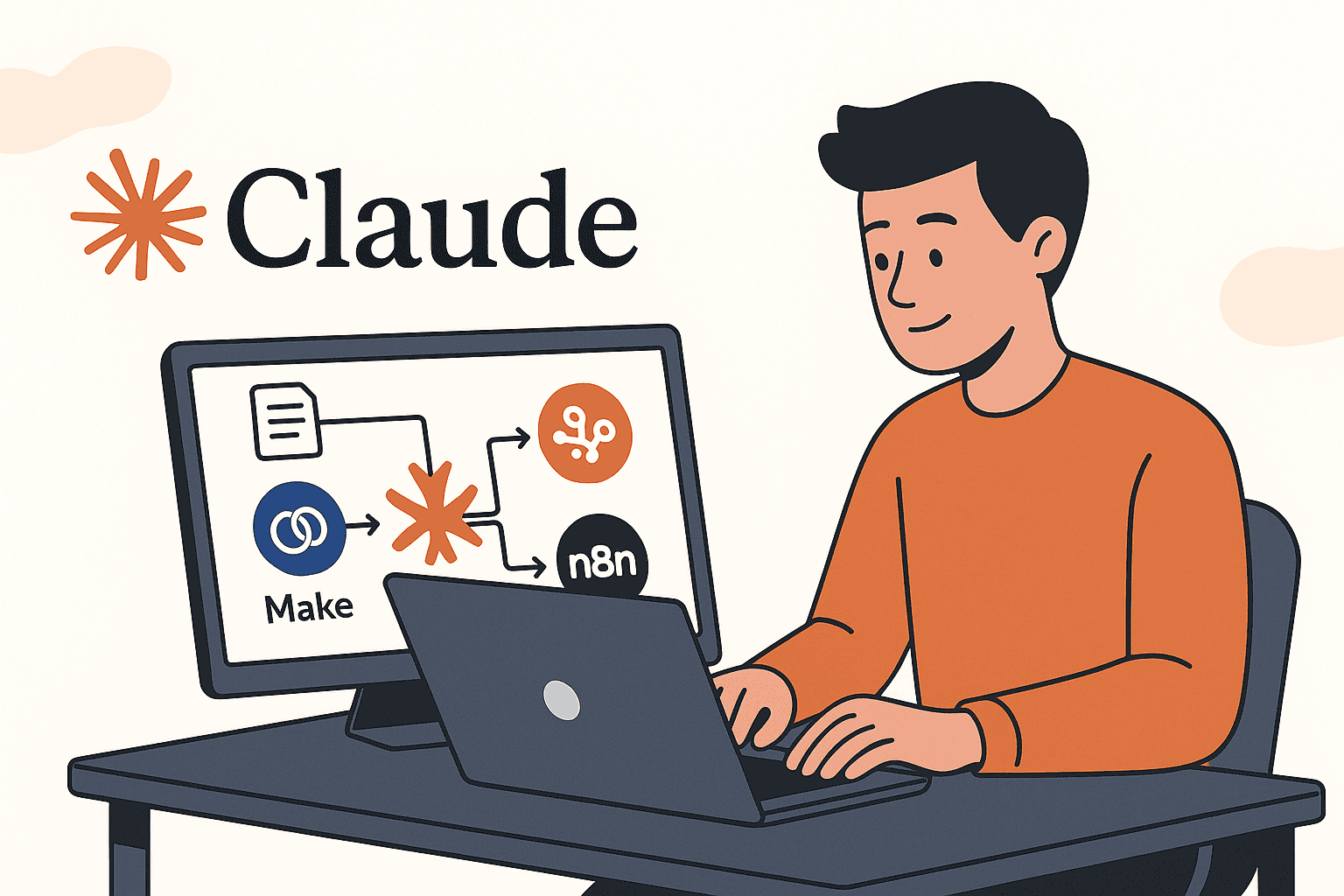

Integrating Anthropic’s Claude AI into your Make and n8n workflows can supercharge your automation projects. In this comprehensive guide, we’ll explore how Claude’s powerful AI can be applied in real-world scenarios, provide ready-to-import JSON blueprints for both Make and n8n, and compare using Claude on each platform.
Whether you’re a developer, a no-code builder, or a content team lead, you’ll learn how to leverage Claude via API for translation, summarization, email automation, document processing, and more – all while understanding which platform (Make or n8n) best fits your needs.
Who Should Use Claude with Make or n8n?
This guide is tailored for a wide range of professionals who want to embed AI into their automation workflows:
- Developers & Automation Engineers: Technical users looking to integrate Claude’s API into custom workflows on Make/n8n.
- Solopreneurs & Small Businesses: Individuals building no-code or low-code automated processes (like content publishing or lead management) without a full dev team.
- Content Teams & Operations Managers: Those who manage large content pipelines or repetitive processes (translations, summaries, data entry) and seek to streamline them with AI.
- No-Code/Low-Code Builders: Users of Make or n8n who create daily automations and want to add Claude for intelligent text generation or analysis without heavy coding.
- Agencies & Consultants: Teams creating automation solutions for clients, where Claude’s capabilities (like summarizing reports or drafting emails) can add value to the delivered workflows.
If you fall into any of the above categories, integrating Claude can save time and enhance your workflows by handling language-intensive tasks automatically.
High-Demand Claude-Powered Automation Workflows
Claude is a large language model adept at understanding and generating text, which makes it ideal for many common workflow automations. Below are some high-demand use cases you can implement with Claude in Make or n8n:
1. Translation Pipelines & Localization QA
If you deal with multilingual content, Claude can automate translation and quality checks. For example, you could build a workflow where new text (from a form or CMS) triggers a Claude API call to translate it into multiple languages. Claude’s prompt can instruct it to preserve tone and terminology. A second Claude step might perform localization QA – e.g. comparing the translation to the original or following a checklist of quality criteria. This ensures consistency across languages without manual review. Both Make and n8n support such pipelines:
Make’s AI Toolkit even has a built-in “translate text” module, and n8n can call Claude’s API for translation tasks. Claude’s large context window (up to 1M tokens on certain models) means it can handle lengthy documents or batches of text in one go, making it feasible to translate entire articles or reports in one workflow run. The result can then be sent for review or automatically published. (For example, a Make scenario might take a Google Doc input, translate via Claude, and create a new localized Doc; an n8n workflow could accept a webhook with text and use an HTTP node to call Claude’s translate API, then post the result to Slack for review.)
2. Content Summarization & Rewriting Workflows
Another popular use of Claude is summarizing or rewriting content. This is valuable for digest emails, article summaries, or repurposing content. You can set up workflows where Claude reads a large block of text (blog post, PDF, or even a transcript) and returns a concise summary or a rewritten version in a specified style. For instance, content teams can automate newsletter creation by having Claude summarize the top 5 articles of the week. Both platforms make this easy – Make provides a “summarize text” function out of the box, and in n8n you can send the text to Claude via an HTTP Request node with a prompt like “Summarize the following in 3 bullet points…”. These summaries can then be emailed or posted to a CMS.
Claude’s strength in following complex instructions means you can ask for specific summary formats (e.g. key takeaways, or a rewrite with a more friendly tone) and expect consistent results. For example, one community user used Claude to build a workflow that summarizes unread Gmail messages each morning, sends a Slack message with the summary, and logs everything in a Google Sheet. This kind of multi-step automation turns a deluge of text into an actionable brief, all powered by Claude.
3. CRM and Email Response Automation
Automating customer communications is a high-impact use case. Claude can draft email replies, categorize incoming messages, or even answer customer questions based on provided context. In a CRM workflow, for example, when a new support ticket or email arrives, an automation can have Claude analyze the message and generate a suggested response or classification. Customer support teams use Claude to respond to inquiries more efficiently. You could set up a Make scenario that triggers on a new email in Gmail, passes the email content to Claude (using the Create Prompt module) with instructions to draft a polite reply, then sends that draft to a support agent for approval or directly back to the customer. n8n similarly can watch an IMAP inbox or CRM system and use a Claude API call to generate a response, then route it via Gmail or another service.
Claude’s conversational ability makes the replies sound natural and context-aware – in fact, companies have replaced GPT-based support bots with Claude and seen higher customer satisfaction. Common patterns include classifying emails (e.g. sales lead vs support query vs spam) and auto-responding with summaries or relevant info. For instance, you might have Claude read an incoming lead email and produce a summary with key details plus a follow-up question, which your workflow then emails out. These automations save time and ensure consistency, as Claude can be instructed to always use a friendly tone or include certain signature lines, etc.
4. Document Q&A and Data Extraction
Claude excels at reading and extracting information from documents, which is incredibly useful for workflows dealing with PDFs, forms, or reports. You can build a Document Q&A bot where a user uploads a document and your Make/n8n scenario feeds it to Claude with a prompt to answer questions about it or pull out specific data. For example, an HR team could automate resume screening: when a PDF resume is uploaded (trigger), Claude is asked to extract the candidate’s name, skills, and years of experience, outputting structured data.
The workflow can then populate a database or Google Sheet with this info. Indeed, Claude’s JSON mode or structured output prompting is highly reliable – tests showed over 95% consistency in extracting structured data like JSON from complex documents. Make’s Claude integration includes file upload/download modules which can help process documents, and n8n has community templates for “chat with PDF” and data extraction using Claude. One such n8n template “Extract and process information from PDF using Claude and Gemini” demonstrates using Claude to intelligently parse PDFs for analysis.
Use case examples: Contract analysis (find key clauses, dates, parties), invoice processing (extract amounts, invoice numbers, due dates), or internal knowledge base Q&A (answer questions from a policy document). With Claude’s huge context window, you can feed very long documents (hundreds of pages) in one go, making it feasible to summarize or query extensive reports automatically. The automation might end with Claude’s answer or extracted data being sent to a user (e.g. via email or Slack) or stored for further use.
5. Data Cleaning and Categorization Pipelines
Data teams and content managers often need to clean up text data or categorize entries – tasks that Claude can accelerate. For instance, you might have a pipeline that takes product descriptions or customer feedback and uses Claude to standardize format and tone (cleaning), then categorize each item by sentiment or topic. Make’s AI Toolkit includes functions to “standardize text” (ensuring consistent style/format) and “categorize text” based on custom categories, which can be powered by Claude as the AI engine. In n8n, you can achieve the same by prompting Claude via API: e.g., “Assign the following text to one of these categories: [List] and output the category only.”
Examples: tagging support tickets as Billing, Technical Issue, Feature Request, or normalizing addresses and names from various sources into a standard format. Claude can also perform data cleanup like correcting spelling and grammar or converting units/currencies. You can chain multiple Claude calls – first to clean/normalize the text, second to categorize it – all within one workflow. One common scenario is sentiment analysis on feedback: Claude can read a customer comment and output “Positive/Neutral/Negative” along with an explanatory sentence, which you can log or trigger alerts from. (Make’s toolkit has “analyze sentiment” as well.) These AI-driven pipelines reduce manual data work and can operate in bulk. For instance, an automation could nightly grab new rows from a Google Sheet of feedback, have Claude categorize and summarize each, and then update the sheet or visualize results. This was highlighted by n8n’s use-case examples where Claude was used to enhance lead generation by processing form responses and to streamline data management by generating insights from datasets – essentially, automating what would otherwise be tedious classification or cleanup tasks.
6. Multi-Step Workflows Triggered by Webhooks or Forms
Often, the real power of Claude emerges in multi-step workflows where AI is one component among many. Make and n8n shine here by allowing complex branching and integration with hundreds of apps. Claude can be the “brain” in an automation sequence that might involve triggers like webhooks, form submissions, or external events. For example, imagine a form on your website where a user submits a question. This could trigger an n8n workflow via webhook, which then searches your internal knowledge base, feeds some relevant context to Claude, and returns an answer to the user by email – all in seconds, without human intervention. Another example: a new CRM record could trigger a Claude-powered analysis or email draft. Hack’celeration’s team implemented a webhook-triggered Claude integration – whenever a new CRM entry was added, it kicked off a Claude analysis, enriching the data, in under 2 hours of development. This illustrates how quickly one can wire Claude into event-driven automations.
Use cases here are endless: a Zapier-like behavior but using Claude for any intelligent step, from automatically drafting social media posts when a blog is published, to running a daily pipeline (scheduled trigger) that pulls data from APIs, has Claude generate a report or summary, then sends it out. Both Make and n8n allow webhook triggers and scheduling, which means Claude can be put on a cron job to do things like analyze daily sales data at 6am and post highlights to your Slack. In fact, n8n’s template library contains flows like “Scrape news and send AI summaries to Telegram” (using Claude for the summary) – a blueprint you can emulate with any trigger + Claude + output chain. The key is that Claude via API can be invoked as part of a larger automated process, not just in isolation, enabling true end-to-end workflows where AI handles the thinking tasks and the surrounding nodes handle data movement and actions.
Blueprint Examples: JSON and Diagrams for Make vs. n8n
To make this concrete, let’s look at how a Claude-powered automation is configured in Make and in n8n, including JSON blueprints and step-by-step logic. We’ll use a simple scenario for illustration: when new text is received via webhook, summarize it with Claude, then email the summary. This example touches on multiple steps (trigger, AI action, and an email output) and can be imported into your Make or n8n environment.
Make Blueprint: Webhook → Claude (Prompt) → Gmail Email
In Make (formerly Integromat), we can create a scenario with three modules: an HTTP Webhook trigger to catch incoming data, an Anthropic Claude module to generate the summary, and a Gmail module to send the email. Below is a simplified JSON blueprint of this scenario (you can import this JSON in Make’s scenario builder to replicate the flow):
{
  "name": "Claude Summarize and Email",
  "triggers": [
    {
      "module": "Webhook",
      "id": 1,
      "name": "Receive Text Webhook",
      "parameters": {
        "webhookUrl": "<<GENERATED_WEBHOOK_URL>>",
        "method": "POST"
      }
    }
  ],
  "modules": [
    {
      "module": "Anthropic Claude",
      "id": 2,
      "name": "Summarize with Claude",
      "action": "Create a Prompt",
      "connection": "<<YOUR_CLAUDE_CONNECTION>>",
      "parameters": {
        "prompt": "Summarize the following text in 3 sentences:\n{{1.content}}",
        "model": "claude-2",
        "maxTokens": 300
      }
    },
    {
      "module": "Gmail",
      "id": 3,
      "name": "Send Summary Email",
      "action": "Send an Email",
      "connection": "<<YOUR_GMAIL_CONNECTION>>",
      "parameters": {
        "to": "{{$YOUR_EMAIL}}",
        "subject": "Summary of Submitted Text",
        "body": "Here is the summary:\n\n{{2.choices[0].message.content}}"
      }
    }
  ],
  "connections": [
    { "from": 1, "to": 2 },
    { "from": 2, "to": 3 }
  ]
}
How this Make scenario works: The Webhook (Module 1) is the entry point – when someone sends an HTTP POST request with a text payload (e.g. content field), Make catches it. That text is mapped into the Claude module. The Anthropic Claude module (Module 2) uses the “Create a Prompt” action (the Make integration provides a ready-made action for chat completions). We pass a prompt that instructs Claude to “Summarize the following text in 3 sentences:” followed by the text from the webhook ({{1.content}} denotes output of module 1). We’ve selected a model (e.g. claude-2 or any Claude model available via your connection) and set a maxTokens limit to constrain the length of the summary.
When run, this module will call Claude’s API via the connection (an API key you configure once) and get a completion. The output (Claude’s summary text) is then fed into the Gmail module (Module 3). The Gmail module is configured to send an email – you would put an email address in “to”, a subject line, and in the body we inject Claude’s result ({{2.choices[0].message.content}} is where Claude’s response from module 2 resides, according to the Claude module’s output structure). Finally, the connections defined ensure the execution order: Webhook -> Claude -> Gmail.
When this scenario is active, you can send an HTTP POST (for example via a form or API call) to the webhook URL with a chunk of text, and within seconds Claude will return a summary which is then emailed out. This blueprint can be modified or extended easily – for instance, you could add a Translate module after Claude to translate the summary, or log the summary to a Google Sheet instead of emailing. Make’s visual interface would show this as a chain of three modules, with mapping lines indicating how data flows from one to the next. (In our conceptual diagram: Trigger → Claude AI → Email.)
n8n Blueprint: Webhook → HTTP (Claude API) → Slack Message
In n8n, we achieve the same result with a slightly different approach: n8n does not (yet) have a native Claude node, so we use a generic HTTP Request node to call Claude’s API, and then send the summary via another service like Slack (for demonstration). Here’s an example n8n workflow JSON (simplified for clarity) which you can import into n8n:
{
  "name": "Claude Summarize to Slack",
  "nodes": [
    {
      "id": "1",
      "name": "Webhook",
      "type": "n8n-nodes-base.webhook",
      "parameters": {
        "path": "receive_text",
        "method": "POST",
        "responseMode": "onReceived",
        "responseData": {
          "statusCode": 200,
          "body": { "message": "Received" }
        }
      }
    },
    {
      "id": "2",
      "name": "Claude API Call",
      "type": "n8n-nodes-base.httpRequest",
      "parameters": {
        "authentication": "predefinedCredentialType",
        "httpMethod": "POST",
        "url": "https://api.anthropic.com/v1/complete",
        "headers": {
          "Content-Type": "application/json",
          "X-API-Key": "<<YOUR_CLAUDE_API_KEY>>"
        },
        "body": {
          "model": "claude-2",
          "max_tokens_to_sample": 300,
          "prompt": "\n\nHuman: Please summarize the following text in 3 sentences:\n{{$node[\"Webhook\"].json[\"body\"][\"text\"]}}\n\nAssistant:",
          "stop_sequences": ["\n\nHuman:"]
        },
        "options": {}
      },
      "credentials": {
        "httpBasicAuth": "<<set to none, using API Key in header>>"
      }
    },
    {
      "id": "3",
      "name": "Send Slack Message",
      "type": "n8n-nodes-base.slack",
      "parameters": {
        "resource": "message",
        "operation": "postEphemeral",
        "channel": "<<YOUR_SLACK_CHANNEL_ID>>",
        "text": "Summary: {{$node[\"Claude API Call\"].json[\"completion\"]}}",
        "username": "ClaudeBot"
      },
      "credentials": {
        "slackApi": "<<YOUR_SLACK_CREDENTIAL>>"
      }
    }
  ],
  "connections": {
    "Webhook": {
      "main": [
        [ { "node": "Claude API Call", "type": "main", "index": 0 } ]
      ]
    },
    "Claude API Call": {
      "main": [
        [ { "node": "Send Slack Message", "type": "main", "index": 0 } ]
      ]
    }
  }
}
How this n8n workflow works: The Webhook node listens at a path (e.g. an endpoint POST /webhook/receive_text) for incoming data. When triggered, it immediately responds with a 200 (we configured an immediate response) so that the sender knows it was received. The actual text payload is available as {{$node["Webhook"].json["body"]["text"]}} – that’s how we reference the JSON from the webhook in later nodes. Next, the Claude API Call node is an HTTP Request that posts to Anthropic’s API endpoint (in this case, the v1/complete or v1/complete endpoint for Claude’s completion API).
We include the necessary headers, notably the API key (provided by Anthropic when you get access) – here we put it in the X-API-Key header as required. The body of the request includes the model (e.g. claude-2 or claude-2.1 depending on your Claude version), a max_tokens_to_sample (the maximum tokens Claude should generate), and the prompt. For Claude’s API, the prompt often includes role annotations like “Human:” and “Assistant:” or you can use the newer chat format – but here we kept it simple. We take the text from the webhook (body.text) and insert it into a prompt asking for a 3-sentence summary. When this HTTP node runs, it will hit Claude’s API and return a response containing the completion (Claude’s reply).
In n8n, that JSON will be something like {"completion": "This is the summary text.", ...} (Anthropic’s API returns a JSON with a completion field for the assistant’s message). Finally, the Slack node takes that summary and posts it as an ephemeral message in a Slack channel. (We could just as easily use an Email node or any other integration; Slack is used here as an example output.) The Slack node’s text field references {{$node["Claude API Call"].json["completion"]}} which is the summary text from Claude. When wired together, the connections ensure the order: Webhook triggers -> HTTP request to Claude -> Slack message.
On execution, a POST request with JSON like {"text": "...(some content)..."} to the webhook endpoint will cause Claude to summarize that text, and n8n will then send the summary to the specified Slack channel as “ClaudeBot”. This entire flow is fully automated: you could embed the webhook in a form or an app, and whenever it’s called, the Slack (or email) gets the AI-generated summary a moment later.
Conceptual diagram: In an n8n canvas, you’d see nodes for Webhook, HTTP Request (Claude), and Slack, connected in sequence. The first provides input, the second processes it with AI, the third delivers the result. This mirrors the logic of the Make scenario but using n8n’s nodes and a manual API call. (Notably, n8n’s official Claude integration guidance is to use the HTTP node in this way, since it gives flexibility to call any Claude API endpoint.)
Import Notes: After importing the above JSON, you’d need to configure credentials: in Make, set up your Anthropic Claude connection (API key) and Gmail connection; in n8n, insert your Claude API key in the HTTP node (or better, set it up as a Credential for reuse), and configure Slack (or change the third node to an email node with SMTP or Gmail API credentials). These examples are kept simple for clarity – production workflows should include error handling, and you may want to store results or add conditions (e.g., only summarize if text is longer than X).
Make vs. n8n for Claude Integration: Comparison and Insights
Both Make and n8n are capable of integrating with Claude, but they have different strengths and considerations. Here we compare key aspects to help you decide which platform suits your Claude-powered automations:
Ease of Setup:
Make offers a very quick start for Claude integration thanks to its pre-built Anthropic Claude app. You simply obtain an API key and create a connection in Make, then you can drag-and-drop Claude modules (like Create Prompt) into your scenario. No coding is required to call Claude – the parameters (prompt, model, etc.) are given as form fields. In n8n, setting up Claude involves a bit more manual work: typically you’ll use the HTTP Request node with Claude’s REST API. This means copying endpoint URLs and configuring headers for your API key.
It’s still straightforward if you’re comfortable with APIs – n8n’s interface lets you fill in these details – but it may feel less plug-and-play than Make’s native integration. On the plus side, n8n’s community has provided custom nodes and examples (for instance, there are community nodes that integrate Anthropic’s chat model, and templates in the n8n marketplace) which can simplify this if you choose to use them. In summary, Make is a bit easier for a non-technical user to get Claude working out-of-the-box, whereas n8n might require a couple more steps initially (though nothing more complicated than pasting an API key and JSON payload).
Flexibility & Customization:
Here, n8n has the edge for developers or advanced use cases. n8n is built with a “code if you need to” philosophy – you can always drop in a Code node (JavaScript, Python) or write custom functions, and you have full control over the logic and data transformation at each step. It’s also open-source and extensible; you can even create your own nodes or use community-contributed ones. This means if you need a very custom integration with Claude (say using a new feature of Claude’s API or chaining complex logic), n8n won’t limit you. Make, on the other hand, keeps everything within a polished visual interface but uses a proprietary system for expressions and transformations. You can do a lot with Make’s built-in functions, but complex operations might require learning their specific formula language.
Make does allow custom code via a “JavaScript function” module, but only on higher-tier plans (Enterprise) or via a separate custom app SDK. In practice, if your workflow is straightforward (e.g., send prompt to Claude, then email), Make’s simplicity is fine. But if you need to, say, generate dynamic prompts via code, handle branching logic, integrate with an internal database, etc., n8n’s flexibility (like looping, error handling, and coding capabilities) is superior. Another point: n8n being self-hostable and source-visible means you can deploy it on your own servers and even modify it; Make is a hosted SaaS (with on-premise agents for enterprise) and is closed-source. So, for organizations concerned with data control or wanting to deeply customize, n8n offers more freedom.
Pricing and Scalability:
This is a significant differentiator. Make uses an operation-based pricing model – every action (each module executed, each iteration in a loop, etc.) counts toward your quota, and there are also data transfer limits tied to these operations. For example, if your scenario has 5 modules and it runs 100 times, that’s 500 operations. This can become costly for large or complex workflows, especially those that process many items or call Claude multiple times. n8n uses an execution-based model – you pay per workflow run (regardless of how many nodes are in it, within reasonable limits). This means a complex workflow with many steps is essentially “cheaper” on n8n relative to Make, since n8n doesn’t charge per node execution. As an illustration, the n8n team points out that workflows totaling 100k tasks might cost $500+ per month on operation-based platforms, but on n8n’s cloud it could be around $50. If you plan to heavily use Claude, especially with large context (meaning big prompts/responses) or high frequency, cost can add up – not only the Claude API fees themselves but the platform’s pricing.
With n8n you also have the option to self-host for free (Community Edition) which is extremely cost-effective for internal projects. Make has a free tier but it’s limited in operations, and no free self-host option. In summary, for high-volume or high-complexity automations, n8n is usually more cost predictable and scalable. Make is perfectly fine (and maybe cheaper) for lighter usage or simpler workflows, but you need to watch out for operation counts as you scale up AI usage. Also, if you need on-prem for data security, n8n allows it whereas Make’s on-prem “agents” still rely on a cloud controller.
Best Use Cases for Each Platform:
If you’re wondering “Should I use Make or n8n for my Claude project?”, consider the nature of your project and team. Make is excellent for quickly assembling simple to moderately complex workflows with minimal coding. It has a very user-friendly UI and a huge library of pre-built app integrations (over 2,800 apps), including a first-class Claude integration. So if your primary need is, for example, “When a new document arrives, have Claude summarize it and email me” and you want to set that up in 10 minutes with no code, Make is a great choice. It’s also a fully managed cloud service, so you don’t worry about hosting. n8n is ideal when complexity, custom logic, or scale are in play. If you anticipate heavy use of Claude (lots of calls, large context sizes) or complex multi-step logic with conditional branches, loops, or merging data from various sources, n8n’s approach will handle that better in the long run.
It’s designed for technical workflows and offers fine-grained control and extensibility – you can integrate with internal APIs, run custom code, and even version control your workflows (Business self-host version supports Git). Teams that are more engineering-oriented or that value open-source will lean toward n8n. On the other hand, teams that want a polished SaaS with support and don’t need to tinker under the hood might prefer Make. Also consider maintenance: Make’s visual nature makes it easy for non-developers to maintain scenarios, whereas n8n might require a developer’s touch if something goes wrong (though its interface is also no-code friendly, just with more technical options available). In essence, for simpler, linear workflows and fast deployment, Make is often sufficient; for ambitious, “anything is possible” workflows, n8n provides the power and control.
Claude API Integration Differences:
Both platforms ultimately talk to Claude via the Claude API – the difference is in how they do it. As noted, Make has a built-in integration maintained by Make (Anthropic is a verified app on the platform). It provides around 13 ready-made actions, including creating prompts (chat completions), managing Claude “skills” and files, etc.. This means Make exposes much of Claude’s functionality in a point-and-click manner. If Anthropic releases new features, Make might add new modules, but there could be a lag; however, Make also has a “Make an API call” module for any app which you can use as a fallback to call any Claude endpoint not (yet) covered by a native module. n8n, lacking a native node at the time of writing, relies on you to use HTTP calls – but this also means you can immediately use any aspect of Claude’s API (you’re not limited to what a node’s UI exposes). For example, if Anthropic introduces a new parameter or a new model, you can include it in the JSON payload in n8n’s HTTP node right away. In both platforms, authentication is straightforward – you just plug in the API key (Make via the connection dialog, n8n via the HTTP node credential or header). Performance-wise, both simply relay requests to Claude’s cloud API, so there’s no significant difference there.
One consideration is error handling and retries: n8n allows custom logic on errors (with its Try/Catch nodes or function logic), while Make has a concept of error handling routes but they need to be set up per module and can get clunky for large flows. If you expect to hit rate limits or occasional Claude timeouts (which can happen if a query is too large or takes too long), n8n might give you more flexibility to catch and respond (e.g., wait and retry, or notify someone) in your workflow. Make can do error routes, but you have to manually attach them and consider every module that might fail. In summary, integrating Claude’s API is possible on both; Make simplifies the common tasks into built-in modules, while n8n gives you the raw control to use the API as you wish. Advanced users might actually prefer crafting the API call themselves (n8n style) for flexibility, whereas those who want speed and simplicity will appreciate Make’s form-based modules.
Claude via API vs Claude-in-Slack vs Claude Web UI
As a final consideration, let’s address how to use Claude in different environments. We focused on the Claude API integration because it enables full automation in Make and n8n, but you might also encounter Claude’s Slack app or the Claude web interface (claude.ai):
Claude via API (the focus here): Using Claude’s API is the most powerful and flexible way to leverage the AI in automation workflows. It allows your Make/n8n scenarios to call Claude programmatically with any input and get a response, without manual intervention. As discussed, this approach “allows total automation within Make and n8n, supports complex workflows, and guarantees scalability” (i.e., it can handle large volumes and can be scaled on your infrastructure) – which is precisely why we prioritize it. By designing your workflows around API calls, Claude becomes a backend service for your tasks.
This is ideal for production scenarios where consistency and integration with other apps matter. In practice, developers and businesses integrate Claude’s API into all sorts of tools – from Airtable to custom databases – and both Make and n8n can act as the glue for these integrations. The API-first strategy means anything that can send HTTP requests (which both platforms do) can use Claude in customized ways. If you need an automated solution (no human in the loop) – like auto-summarizing every document uploaded or automatically triaging emails – the API via Make/n8n is the way to go.
Claude-in-Slack (Anthropic’s Slack App): Anthropic offers an official Slack app for Claude, which effectively puts Claude in your Slack workspace as a chatbot assistant. This is great for interactive use by teams – you can DM Claude or @mention it in channels to ask questions, summarize conversations, draft content, etc., all from Slack’s UI. For example, you might quickly ask Claude in Slack, “Summarize the last 20 messages in this channel” or “Draft a response to the customer complaint above”, and it will reply in thread. The Slack integration can increase team productivity by handling requests on the fly without leaving the chat context. However, it’s not as suited for structured automation. It typically requires a person to invoke (via slash commands or mentions), and it operates within Slack – meaning the output is in Slack (not, say, automatically saved to a database or sent to an email unless you copy it).
You also can’t easily trigger Slack Claude from external events in other systems (aside from some creative uses of Slack APIs). In our context, you might use Claude-in-Slack as a quick notification or prototyping tool – e.g., have your Make/n8n workflow send a message to Slack and then a human could ask Claude follow-ups there. But if you need an end-to-end automation, Slack Claude alone isn’t sufficient. Also, Slack Claude might not have access to files or data outside Slack (whereas a Make/n8n workflow can feed Claude any data you have access to). In short, Claude-in-Slack is ideal for on-demand help for users (collaboration, Q&A, quick summaries in chat), whereas Claude via API (Make/n8n) is for integrating AI deeply into your business processes.
Claude Web UI (claude.ai): Claude’s own web interface is essentially a chat playground where you can converse with the AI directly. It’s useful for quick manual testing of prompts and ideas. For example, when designing your workflow prompt, you might first try it on claude.ai to see how Claude responds, adjust it until you get the desired output, and then take that prompt into your automation. The web UI also allows you to upload files for Claude to analyze, and do things like parse documents or code interactively. However, it is a manual tool – you need to type or upload content yourself. There’s no official way to pipe data in and out automatically from claude.ai into your other apps.
Think of it as a powerful sandbox for experimentation and one-off tasks. Anthropic’s docs note that “users can engage directly with Claude through claude.ai to explore ideas, analyze images, and parse lengthy documents,” while developers use the API to build integrations. So, while Claude’s web UI is great for ad hoc usage and prompt engineering practice, it’s not part of an automated workflow. It also might have lower rate limits and lacks the customization that API calls provide. Use it to prototype and understand Claude’s capabilities, then implement the solution via the API in Make/n8n for automation.
Conclusion: For a robust automation solution, Claude’s API (accessed via Make or n8n) should be your primary choice – it ensures you can connect Claude to any trigger or system and handle the outputs programmatically, enabling fully automated pipelines.
Claude-in-Slack and the Claude web UI are complementary tools: Slack integration brings Claude’s power to your team collaboration in real-time (great for notifications or interactive summarizing in a meeting context), and the web UI is a quick way to test and iterate on what you might later automate.
In practice, many teams might use all three: for example, test a prompt on claude.ai, set up a Make scenario to run that prompt on incoming data regularly, and occasionally call Claude in Slack for spontaneous questions. Each has its place, but only the API integration unlocks the true “automation without limits” potential that we’ve focused on in this article.