

Why Use AI for Data Cleaning?
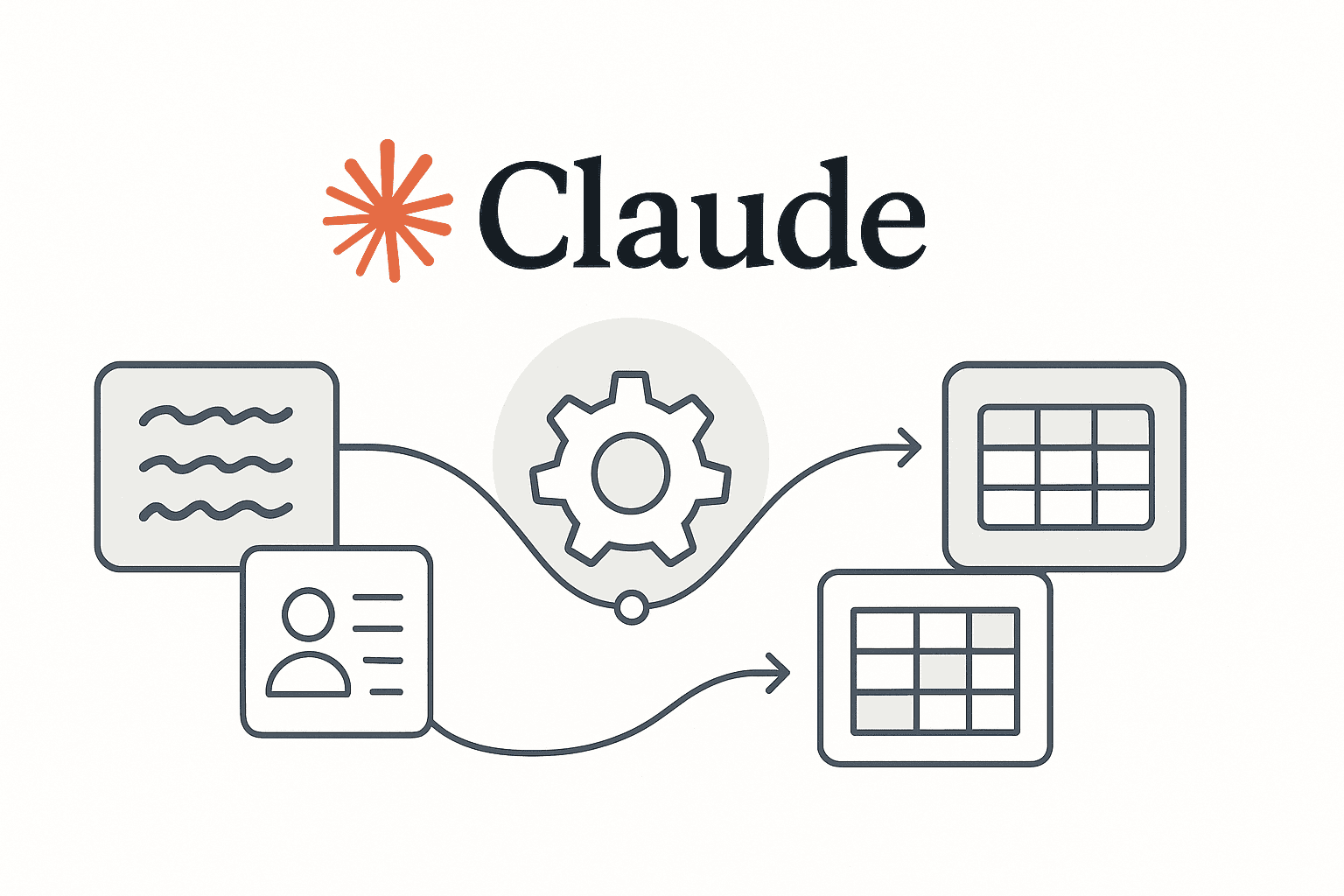
Every day, data analysts, operations teams, and support staff grapple with messy text data – from jumbled customer feedback to inconsistent product info. AI data cleaning with tools like Anthropic’s Claude can transform raw, unstructured text into structured, organized data in a fraction of the time. In essence, Claude can take free-form text and output it as a neatly formatted table or JSON, ready for analysis. This means no more manually combing through feedback or copy-pasting into Excel; instead, you get structured data with AI assistance.
Claude is a powerful large language model known for following instructions well and handling large context (up to hundreds of pages of text). With smart prompting, it can parse complex inputs and return consistent, structured outputs (even in JSON or CSV formats). In fact, Claude is designed to parse and reason about structure when guided correctly.
By leveraging Claude for data cleanup, teams can save countless hours and unlock insights hidden in text that would be tedious to extract manually. The bottom line: AI-driven data cleaning turns hours of drudgery into minutes of conversation.
How does Claude help? Suppose you have a free-text field with customer comments. Claude can quickly identify key fields or sentiments and output a standardized summary or categorization. Anthropic even highlights that feeding Claude raw data can yield “polished outputs with cleaned data, statistical analysis, charts, and written insights”. In other words, Claude doesn’t just spit back text – it can provide organized data ready for your database or spreadsheet.
Perfect Use Cases for Claude-Driven Structuring
Let’s look at the kinds of unstructured text Claude data cleaning handles best, and how structuring that data creates value:
Customer Feedback: Feedback comes as open-ended comments – full of praise, complaints, suggestions, you name it. Claude can parse large volumes of customer feedback from emails, support tickets, or reviews and extract useful structured info. For example, it can tag each comment with a sentiment (positive/negative/neutral) and key themes or issues. This helps support teams identify common pain points fast. Claude’s language understanding is strong enough to identify sentiments and recurring issues across feedback, helping you pinpoint areas for improvement. Structured data like sentiment scores, issue categories, or product mentions can be logged for each feedback, turning a mountain of text into a concise report.
Product Listings: E-commerce and operations teams often deal with product descriptions that are basically paragraphs of specs and features in prose form. With Claude, you can turn messy product text into structured fields. For instance, given a description like “Red Runner: A lightweight running shoe with a 6.5-inch sole, available in sizes 40-45, priced at $120”, Claude can extract a JSON with fields like { "product_name": "Red Runner", "category": "Shoes", "sole_height": "6.5 inch", "sizes": [40,41,42,43,44,45], "price": 120 }. This structured data is gold for inventory databases or analysis. Claude’s ability to follow schemas means it can output exactly the attributes you specify (we’ll see how to enforce schemas later). No more manually parsing product specs – the AI does it for you, ensuring consistency.
Survey Responses: Surveys often include open-ended questions (“What can we improve?”). Reading through hundreds of responses is slow and subjective. Claude can automate this by analyzing each response and structuring the results. For example, for an employee survey, Claude could categorize each comment into predefined topics (e.g. Work-Life Balance, Compensation, Management) and even assign a sentiment or urgency score. Using AI here speeds up analysis immensely. Zapier’s experts note that by combining AI with automation, you can collect form responses and have Claude analyze and categorize each one before storing the analysis – all without manual intervention. The result might be a spreadsheet where each row is a response with new columns for “Category” and “Sentiment” generated by Claude. This makes aggregating and reporting on survey results much easier.
These are just a few examples – the approach is general-purpose. Whether it’s free-form support tickets, social media comments, or sales call transcripts, the workflow remains: prompt Claude to extract the structured pieces you care about (like dates, names, issues, ratings, etc.). Now, let’s dive into practical workflows to achieve this in your favorite tools: spreadsheets, automation platforms, or custom Python scripts.
Workflow 1: AI Data Cleaning in Google Sheets with Claude
For many users, Excel or Google Sheets is the home base for data. The good news is you can use Claude right within a spreadsheet to clean and structure text data. Google Sheets has an add-on called Claude for Sheets that integrates Claude’s AI directly into your spreadsheet. This means you can write formulas to send text to Claude and get the result in a cell – just like you would with a built-in function!
Setup the Claude Sheets Extension: To get started, you need an Anthropic API key and the Claude add-on for Google Sheets. Install the Claude for Sheets add-on from the Google Workspace Marketplace, then provide your API key to connect it (the add-on will prompt you). Once set up, you unlock the special =CLAUDE() function in your sheet.
Using the =CLAUDE() function: This function lets you send a prompt to Claude from a cell. For example, say column A has raw customer comments. In column B, you want a quick sentiment classification. You could enter a formula like:
=CLAUDE("Analyze the tone of this feedback and reply with Positive, Negative, or Neutral: " & A2)
This formula sends Claude a prompt combining an instruction and the content of cell A2. Claude’s response (e.g. “Positive”) will appear in the cell. You can drag the formula down for all rows, and voila – instant sentiment analysis for each feedback entry!
Claude for Sheets can do more than simple labels. You can ask it to extract specific info into structured text. For example, if you have a column with addresses or product descriptions, you can use a prompt that says “Extract the product name, price, and key features from this description in JSON format.” The cell will then contain a JSON string output by Claude (which you could further parse with Sheets formulas if needed).
One powerful use case in Sheets is categorizing text based on custom criteria. As an illustration, imagine a sheet of customer feedback and you want to tag each as GOOD, BAD, or NEUTRAL. You can literally do that with a single formula. Zapier’s example shows:
You have a spreadsheet tracking customer feedback. You can use the formula
=CLAUDE("Categorize the feedback as 'GOOD', 'BAD', or 'NEUTRAL': " & A2)to quickly categorize the feedback.
In practice, you might have something like in cell B2: =CLAUDE("Categorize this feedback as Good, Bad, or Neutral: " & A2). Each cell in column B will then show one of the three labels for the corresponding feedback text in A. This is AI-powered text classification on the fly in your spreadsheet!
Example: Using the Claude add-on in Google Sheets to categorize a list of customer feedback comments. The =CLAUDE() formula sends each comment to Claude and returns a classification (Good/Bad/Neutral) along with a brief explanation in-line.
A few tips for using Claude in spreadsheets:
- Be Specific in Prompts: Since you’ll likely copy the formula down many rows, make the prompt generic enough to apply to any row’s content. Include instructions on format if needed. e.g. “Output as JSON with fields X, Y, Z.”
- Use References: Concatenate cell references in the prompt text (as
& A2in the example) to feed Claude the cell’s value. This way each row’s data goes into the AI query dynamically. - Review and Iterate: If results aren’t as expected, tweak the prompt. You can even have Claude explain something by prompting “Explain:” to debug what it understood from your data.
- Mind Quotas: The add-on uses your API quota – large sheets with many calls might hit limits or incur costs, so use thoughtfully (maybe process in batches if needed).
Finally, always verify the AI’s output. Claude is very good, but not infallible – especially if asked for factual data (it may hallucinate an answer if the info isn’t actually in the text). For data cleaning tasks like formatting and extraction, it’s usually accurate, but if it ever seems off, double-check a few entries. The goal is to automate 90% of the cleanup and leave only a small amount of verification, instead of doing 100% by hand.
Workflow 2: Automate Data Cleaning with Claude and Zapier
What if your data isn’t sitting in a spreadsheet, but flowing in from forms, chat, or other apps? This is where Zapier comes in. Zapier is a no-code automation platform that now integrates directly with Anthropic Claude. You can create Zaps that trigger on new data and then call Claude to transform that data, automatically.
How the Claude–Zapier integration works: In Zapier, Claude is available as an Action step. That means after a trigger (like “New Survey Response in Google Forms” or “New ticket in Zendesk”), you add an action “Anthropic (Claude): Generate Text”. In that action, you compose a prompt for Claude, and you can insert dynamic fields from the trigger data into the prompt. When the Zap runs, it will send that prompt (with the new data) to Claude and get back a response, which you can then use in later steps (e.g. to save to a database, send an email, etc.).
Example – Structuring Survey Responses: Imagine you have a customer satisfaction survey with a question “What could we do better?” (open-ended). Using Zapier, you can automate the analysis of these answers:
- Trigger: New survey submission in Google Forms (or Typeform, etc).
- Action: Anthropic Claude – Prompt: “You are an analyst. Read the response: ‘{response_text}’. Identify the main issue mentioned and output a short summary and a sentiment score from 1 (very negative) to 5 (very positive) in JSON.” (Here
{response_text}is inserted from the trigger data). - Output: Claude returns something like
{"issue":"shipping delay", "sentiment":2}. - Action: (Optional) Add another step to record this output. For instance, create a new row in Google Sheets or send a Slack message with the structured analysis.
Zapier’s AI experts highlight that this approach can completely redesign your process: instead of manually reading each response, the Zap collects responses and lets Claude analyze each one (even categorizing them by labels you define), then stores the analysis for you.
You could apply a similar pipeline to support emails – e.g., trigger on new email, ask Claude to extract fields like Issue Type, Urgency, Customer Mood in JSON, then have Zapier route that to your ticketing system.
Designing effective prompts in Zapier: When formulating the prompt within Zapier’s Claude action, keep these best practices in mind:
- Be explicit about the task – e.g. “Extract the following fields: X, Y, Z and output as JSON.” Don’t assume Claude knows you want structured JSON – tell it!
- Provide context or examples – if you have a preferred format, you can literally show a tiny example in the prompt. For instance: “Format the output as JSON like this: { “field1”: …, “field2”: … }.” Claude will then follow that structure.
- Map fields carefully – Use Zapier’s UI to insert the dynamic data fields (they’ll appear as placeholders like
<Survey Response>). This ensures Claude sees the actual text. For example, your prompt might look like: “Analyze the following feedback and return a JSON with ‘topic’ and ‘sentiment’:<Feedback Text>”, where<Feedback Text>will be replaced by the actual response text when the Zap runs.
Zapier makes testing easy – you can run the action with sample data to see Claude’s output and refine the prompt if needed. It often takes a couple of tries to get the format exactly right. For instance, you might find Claude’s JSON has extra commentary or slight format issues; then you can adjust the prompt to say “Respond with only valid JSON, no extra text.” Once it’s working, turn on the Zap and it will handle incoming data 24/7.
One more powerful feature: Zapier Interfaces (or Zapier Tables) can also capture Claude’s output for further use. You could, for example, have Claude rewrite messy text and then store the cleaned text back into a Google Sheet via Zapier – effectively using Claude as a real-time cleaning engine in your data pipeline.
Using Claude with Zapier truly enables automate data cleaning with Claude in the truest sense – no human in the loop. An operations team could, for example, set up a Zap so that every night it takes the day’s new sales leads, has Claude fill in any missing info (e.g. categorize industry from the company description), and logs the structured info in their CRM. All automatically!
Note: Like before, you should review the outputs initially. Once tuned, Claude will be consistent, but keep an eye out especially if the input text can vary widely. Also consider volume – each Claude action call consumes tokens and API quota. For large-scale use, ensure your Anthropic API plan can handle the load (and cost).
Workflow 3: Using the Claude API with Python for Deeper Cleaning
For more technical users (beginner-to-intermediate Python skills), the Claude API gives full control to integrate AI cleaning into your custom scripts and applications. With Python, you can process large datasets, enforce stricter schemas, and handle complex logic around Claude’s output.
Getting Started with the Claude API: First, obtain your API key from Anthropic (if you used the Sheets or Zapier methods above, you already have this). The Claude API is a RESTful JSON API. Anthropic provides an official Python SDK (anthropic library) to simplify calls, or you can use plain requests to POST to the API endpoints.
Let’s walk through a simple Python example. Suppose we want to take a product description and extract structured fields using Claude:
Example Task: Extract structured data from a product description. Say we have the description: “TechCo SuperPhone X comes in black or silver. Features 128GB storage, 6.5-inch OLED display, and a 4000mAh battery. Price is $699.” We want to get a structured result with fields: name, colors, storage, display_size, battery, price.
Using Python and the Claude API, we can do this as follows:
import requests, json

API_KEY = "YOUR_API_KEY"  # replace with your Anthropic Claude API key
api_url = "https://api.anthropic.com/v1/complete"  # Claude completion endpoint

product_description = "TechCo SuperPhone X comes in black or silver. Features 128GB storage, 6.5-inch OLED display, and a 4000mAh battery. Price is $699."

# Construct the prompt for Claude with instructions
prompt_text = (
    "\n\nHuman: Extract the product details from the following description.\n"
    "Provide a JSON with fields: product_name, colors, storage, display_size, battery_capacity, price.\n"
    f"Description: '''{product_description}'''\n\nAssistant:"
)

# Call the Claude API
headers = {
    "x-api-key": API_KEY,
    "Content-Type": "application/json"
}
data = {
    "model": "claude-2",             # or the specific model version you have access to
    "prompt": prompt_text,
    "max_tokens_to_sample": 300,     # max tokens in output
    "temperature": 0                 # 0 for deterministic output
}
response = requests.post(api_url, headers=headers, json=data)
result = response.json()
structured_output = result.get("completion")

print("Claude's output:", structured_output)
In this script:
- We format a prompt with a clear instruction to output JSON and list the exact fields we want.
- We include the product description in a clear way. (Using the special
Human:andAssistant:tokens as recommended by Anthropic’s API ensures the model knows where the prompt ends and where it should start answering.) - We send the request and then parse the JSON response to get Claude’s completion.
When run, structured_output might contain something like:
{
  "product_name": "TechCo SuperPhone X",
  "colors": ["black", "silver"],
  "storage": "128GB",
  "display_size": "6.5 inch OLED",
  "battery_capacity": "4000 mAh",
  "price": 699
}
This JSON string can then be easily converted to a Python dict (via json.loads) and used however you need – saved to a database, written to a CSV, etc.
Batch processing: You can extend the above code to loop over many descriptions (e.g., read from a CSV file using Python’s csv or pandas). Just be mindful of rate limits and cost – you may want to pause between calls or use Anthropic’s batch prompt feature if available to combine multiple items into one prompt.
Enforcing accuracy and format: One challenge with AI is ensuring the output is exactly in the format you want (especially JSON). Claude is quite good if you explicitly ask for JSON – it will usually comply. In cases where the JSON might have errors or extra text, you have a few options:
- Add a system instruction: Anthropic’s API allows a
systemmessage (or you can prepend something to the prompt) that says “You are to output only valid JSON. Do not include any explanatory text.” This reinforces the format. - Validate and retry: In your Python code, you can attempt
json.loads(structured_output). If it fails (meaning Claude’s output wasn’t valid JSON), you can clean it (e.g., sometimes Claude might put a trailing comment or “` marks – remove those) or adjust the prompt and resend. Usually a well-crafted prompt with temperature=0 avoids this. - Use Claude’s structured output feature: As of late 2025, Anthropic introduced a feature to guarantee JSON outputsmatch a provided schema. This is more advanced – you define a JSON Schema for the output and pass it via the API (using the
output_formatparameter). If you’re comfortable with schemas, this can virtually eliminate format errors because Claude will strictly adhere to the schema or refuse the request. It’s great for production systems needing high reliability.
For example, with structured outputs, you could define a schema for the product fields and Claude will only respond if it can do so in that exact structure – no deviations. Early results have shown this eliminates many parsing errors and makes Claude’s responses dependable for data pipelines.
Real-world Python workflow: A practical scenario combining it all – imagine a CSV ingestion pipeline:
- Load a CSV of unstructured data (maybe a column of “Issue Description” text).
- For each row, prompt Claude via API to extract structured fields (e.g., Issue Category, Urgency Level, Product Name).
- Collect the outputs and write to a new CSV or database.
This could be just a few dozen lines of Python code around the API call shown above. The result is an automated conversion from messy text to a clean dataset. One Reddit user even reported building an automation like this with multiple Claude agents and achieved “96% quality” on data cleaning tasks – drastically reducing their Excel workload. In our simpler single-call approach, you can still expect a huge reduction in manual cleaning time.
Tips for Effective Claude Data Cleaning Workflows
No matter which approach you use (Sheets, Zapier, API), a few general best practices will help you get the most out of Claude when structuring data:
Break tasks into steps: If the text is extremely messy or complex, consider breaking the cleaning process into multiple Claude calls or prompt steps. For example, first ask Claude to summarize or identify issues, then in a second step feed that summary to Claude to format into a table. This is similar to how you’d approach it manually – step by step. AI Academy’s data experts note that breaking cleanup into logical steps and reviewing at each stage yields better results than one giant prompt.
Provide examples in the prompt: This is a form of few-shot prompting. For instance, if users’ answers usually contain multiple points you want as a list, you could show Claude a made-up example: “Input: ‘I love the product but the shipping was slow.’ -> Output: {“pros”: “product quality”, “cons”: “shipping slow”}.” Then say “Now do the same for this input: …”. Examples help steer Claude to exactly what you want.
Stay within context limits: Claude has a large context window (can handle long inputs), but very large prompts slow it down and incur cost. If cleaning a huge document, consider summarizing or chunking it. Luckily, Claude 3 models have up to 200k token windows, which is enormous – so for most cases, you’re fine. But if you automate something like reading 100-page PDFs, be mindful of token limits.
Review initial outputs and refine: Treat the first few outputs as a draft. Check if the structured data makes sense. Are all fields correctly extracted? Any hallucinated info? Adjust the instructions if needed. For example, if Claude sometimes fills a missing field with a guess, you might add “If data is missing, use null or leave blank.” Ensuring the AI knows what to do in edge cases leads to consistent results.
Combine AI with human verification for critical data: For non-critical things (e.g. categorizing blog comments), you might trust Claude’s output as-is. But for critical data (say, extracting medical info or financial figures), use AI to do the heavy lifting but have a human or a code check verify the results. Even a quick spot-check of a random 10% of the outputs can give confidence in quality.
By following these tips, you’ll develop robust data cleaning workflows that harness Claude’s strengths while mitigating its occasional quirks. Many modern data teams are already blending AI into their cleaning process – from scraping web data and having AI structure it, to merging AI outputs with traditional data cleansing tools. In fact, using AI for data cleaning is becoming a standard best practice, as it handles the tedious parts and lets you focus on analysis and decision-making.
Conclusion
Messy text data doesn’t have to slow you down. With Claude, you can turn messy text into structured data reliably and efficiently. We explored how data analysts, ops teams, and support teams – even without deep programming skills – can leverage Claude in the tools they already use: from Google Sheets formulas to no-code Zapier automations to simple Python scripts. The flexibility of Claude means whether you’re cleaning up customer feedback, product listings, survey responses, or any free-form text, there’s a workflow that can save you countless hours.
Importantly, these AI-driven workflows are immediately applicable. You can install a Sheets add-on or set up a Zap this afternoon and watch Claude start organizing your data. Each example we gave – categorizing feedback in a spreadsheet, auto-tagging survey responses via Zapier, parsing product info with an API script – is meant to be a template you can adapt to your own data. The key is giving Claude clear instructions and a desired structure; from there, it does the heavy lifting.
By automating data cleaning with Claude, you not only save time but often improve consistency (AI won’t accidentally skip a row or mistype a value). Your structured dataset will be ready for whatever comes next – whether that’s analysis in a BI tool, machine learning modeling, or simply an eye-opening report to management. Perhaps most exciting, as AI capabilities advance (e.g. Claude’s new structured output guarantees), this process will only get more accurate and easier over time.
So go ahead and try it on your messiest data – feed Claude that “full disaster” CSV or a folder of raw text, and let it work its magic. You’ll quickly wonder how you ever did data cleaning without a bit of AI help. With Claude as your data cleaning assistant, you can focus on extracting insights and adding value, instead of wrangling formatting issues and inconsistent text. Clean data, faster insights – that’s the promise of AI data cleaning with Claude, and it’s here for you to use today.