

Claude Desktop is a native application for macOS and Windows that brings Anthropic’s Claude AI assistant directly to your computer. It offers the same conversational AI capabilities as the Claude web interface, but with deeper integration into your local workflow. Professionals and developers can benefit from faster performance, system-level shortcuts, and direct access to local files and tools, making daily work with Claude more efficient.
This guide provides a step-by-step setup for macOS and Windows, explains initial configuration (including login, model selection, settings, and permissions), and explores how to use Claude Desktop for maximum productivity in your projects.
Installation on macOS and Windows
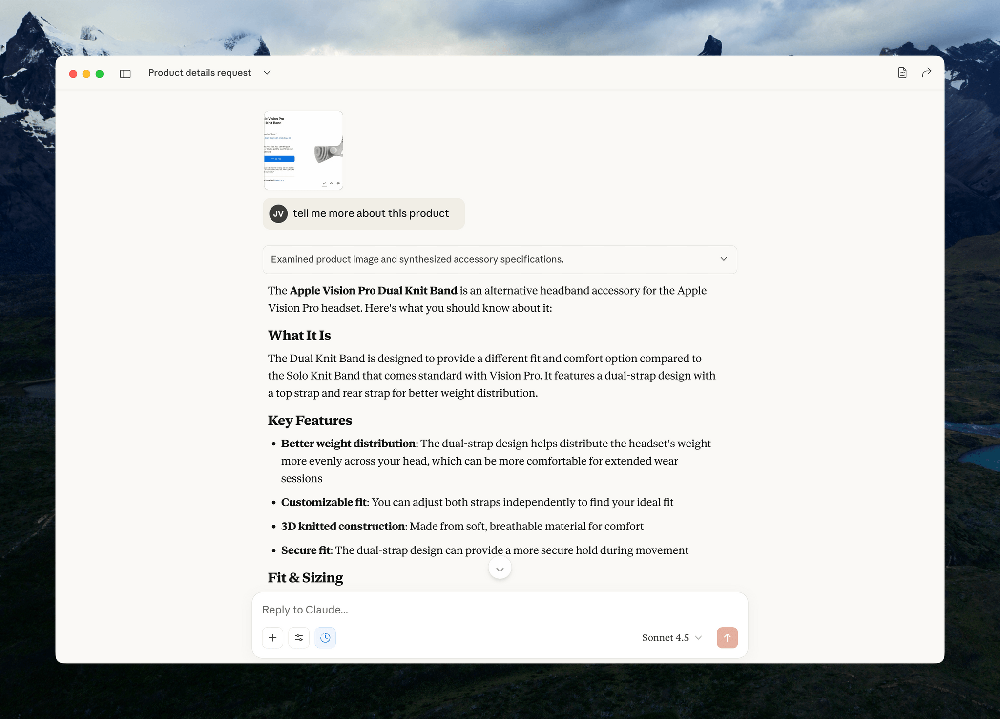
System Requirements: Ensure your system meets the minimum requirements. Claude Desktop supports macOS 11 (Big Sur) or newer and Windows 10 or newer.
Download and Install: Visit the official Claude downloads page and select the installer for your operating system. On Mac, download the .pkg installer (Anthropic provides a universal PKG for both Intel and Apple Silicon Macs). Open the .pkg file and follow the prompts to install Claude Desktop into your Applications folder. On Windows, download the installer (Anthropic provides an MSIX package for modern Windows, with an .exe available for compatibility). Run the MSIX installer and complete the setup wizard; Claude Desktop will be added to your Start menu. If Windows warns about installing an app from outside the Store, you may need to enable app sideloading in Settings > Privacy & security > For developers. On macOS, if you see a security prompt about an unidentified developer, go to System Settings > Privacy & Security and allow the Claude installer to run. After installation, launch Claude from Applications (Mac) or the Start menu (Windows).
Sign In to Claude: On first launch, the app will prompt you to sign in to your Anthropic Claude account. You can log in with your email (and password or magic link) or use a single sign-on option like Continue with Google, depending on your account type.
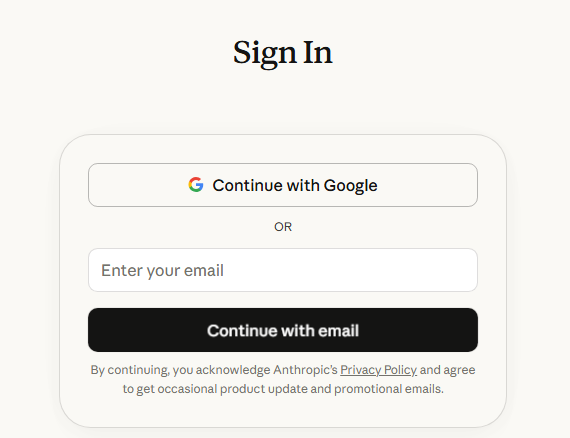
Enterprise and Team users: if your organization uses SSO (Single Sign-On), the app will redirect you to your company’s browser login page for authentication, then return to the app once verified. Use your regular Claude credentials or SSO as appropriate. After a successful login, you’ll see your Claude chat interface.
Initial Setup and Configuration
Once logged in, it’s important to review a few settings and permissions to optimize Claude Desktop:
Model Selection: If you are a paid Claude user (Pro, Max, or Enterprise), you can choose which Claude model to chat with. By default, Claude will use the primary model available to your plan. The current model’s name (e.g. Claude 2, Claude Instant, or internal names like “Opus” or “Sonnet”) is displayed near the input box. To change it, click the model name and select from the list of available models. For example, you might switch from a faster, shorter-context model to a more powerful one for complex tasks. (Note: Free tier users may not have multiple model options.) When you switch models, Claude Desktop will start a new chat with the selected model – your previous chats remain saved separately.
Verify Settings: Open the Settings panel (typically via a gear icon or menu Claude > Preferences on Mac, or File > Settings on Windows). Confirm your Default Model and any text display preferences. You may also want to adjust the font size or theme (light/dark) for readability. Next, check the Global Shortcut for quick access. By default, Claude Desktop on Mac uses a “Quick Entry” shortcut (e.g. double-tap Option key) to open an overlay; on Windows a similar global hotkey may be configured (some users report Ctrl+Alt+Space as a default, but you can customize it). Anthropic doesn’t hard-code a single shortcut for all systems, so choose a key combo that doesn’t conflict with other apps. For example, you might set Option+Space on Mac if double-Option is not preferred. Save your shortcut changes.
Grant Permissions: The first time you use certain features, the OS will prompt for permissions. If you plan to use voice input, allow Claude access to the microphone. On macOS, you’ll also need to enable Speech Recognition (for dictation) and Accessibility permissions so Claude can capture keyboard shortcuts. For screenshot capture or window sharing on Mac, grant Screen Recording permission to Claude Desktop. These are needed for the Quick Entry overlay to snapshot your screen. On Windows, you generally just need microphone permission for voice. File access: when you first drop a file into Claude or use a filesystem extension, the app may request access to that file or folder. Approve these prompts so Claude can read the file’s content. You can manage permissions later via your system privacy settings if needed.
Incognito Mode (Private Chats): Claude Desktop includes a Private (Incognito) chat mode for sensitive conversations. Incognito chats do not save to your account’s conversation history and Claude will not retain that content in long-term memory. This is useful if you want to ask Claude something confidential without logging it. To start a private chat, look for a “Go Incognito” toggle or option when creating a new chat (often represented by a mask or incognito icon). When active, Claude will treat the session as ephemeral – once you close it, it won’t appear in your chat list. Tip: Use this mode for proprietary work data or any session you don’t want to be stored in memory. (Anthropic notes that even with Incognito, data may still be sent to their servers for processing, but it won’t be used to train models or shown in history.)
After configuring these basics, you’re ready to use Claude. It’s a good idea to perform a quick test to ensure everything is working: for example, start a new chat and paste a short prompt (“Hello Claude, this is a test.”), or drag and drop a small text file to see if Claude can ingest it. You can also try capturing a screenshot using the shortcut to confirm that feature (on Mac) is functioning. If something isn’t working (e.g. screenshot not attaching), double-check the permissions above or consult the release notes for known issues.
Key Productivity Features and Use Cases
Claude Desktop is designed to streamline common productivity workflows by leveraging local integration. Think of it as a quick-access frontend to Claude with native desktop tricks that go beyond the browser. Here are some of the top features and use cases:
- File Drag-and-Drop: You can drag files from your computer directly into the Claude chat window. Claude Desktop accepts a variety of formats – for example, you can drop a PDF report, a Word document (DOCX), an Excel spreadsheet (CSV/XLSX), a PowerPoint (PPTX), or even a source code file. Claude will upload and read the file’s content so you can ask questions about it or request transformations. This is extremely useful for summarizing long documents, extracting data, or debugging code. For instance, drop a CSV data file and ask “Claude, summarize the key insights from this dataset” or drop a DOCX contract and ask for a summary of terms. You can also drop an image file (e.g. a screenshot or photo) – Claude is capable of interpreting images in context so it can describe the image or perform OCR to extract text (for example, dropping a screenshot of an error message so Claude can read it). After dropping a file or image into a conversation, you might instruct Claude: “Please review this file and give me a summary,” or “Extract the action items from this PDF”. This seamless file integration is a major advantage of the desktop app.
- Screenshots and Visual Context: Instead of manually saving and uploading screenshots, Claude Desktop (especially on Mac) lets you use screenshots as context instantly. With the Quick Entry feature on macOS, you can capture a region of your screen or even share a whole application window with Claude. For example, if you’re getting an error in an IDE or seeing a chart on a webpage, you can press the shortcut to grab that portion of the screen. Claude will attach the screenshot to the chat so it can “see” what you’re seeing. This is powerful for bug reports, UI feedback, and data visualization questions. Pasting a screenshot is often faster than describing the issue in words. Use case: you encounter a cryptic error dialog, so you screenshot it and ask Claude for help resolving the error. Or you have a complex dashboard on screen – capture it and ask Claude to analyze the trends shown. Claude can interpret the text in screenshots and possibly the visual structure to answer your query. This reduces tedious steps and context-switching.
- Projects and Organization: Claude Desktop supports Projects, which are like folders or workspaces for your chats. If you used the Claude web interface’s projects to organize conversations (for example, separate projects for “Work – Client A” vs “Personal” chats), you can mirror that in the desktop app. Each project contains its own set of conversations, relevant files, and context memory. This helps professionals keep work context separate and organized. For instance, you might have a project for code assistance where you keep chats about specific repositories, another project for research and note-taking, etc. Using projects can also improve Claude’s effectiveness by not mixing unrelated contexts.
- Voice Input (Dictation): If you prefer to think out loud or dictate queries, Claude Desktop offers a voice input option on Mac (and potentially coming for Windows). On macOS, once enabled, you can simply press the Caps Lock key to start voice dictation. Speak your question or command, and Claude will transcribe it in real time and insert it into the chat input. Press Caps Lock again to stop recording, then send the message. This is great for brainstorming or when you want a more conversational, hands-free experience. For example, you can pace around your office and say, “Claude, outline a project plan for migrating our database to a new server”, and it will transcribe and process that. The voice feature uses your Mac’s speech recognition and is available on macOS 12+ (with macOS 14 required for the newest dictation APIs). (Note: Windows users currently do not have a built-in voice shortcut, but you could use Windows’ dictation to similar effect.)
- Local Content Workflows: Claude Desktop excels at scenarios where your data or context is on your local machine. For example:
- Reading Local PDFs and Docs: Open a chat and drag in a PDF or document from your disk. Claude can summarize lengthy reports, extract key points from meeting minutes, or compare two documents you provide. This avoids manually copy-pasting text.
- Coding and Debugging: As a developer, you might copy a block of code or error log from your editor and paste it into Claude for explanation or fixes. With Claude Desktop, you can do this quickly and even use extensions to tie into your IDE (more on extensions below). Claude can help review code for bugs or suggest improvements in your local context. Example: paste a function and ask “Can you refactor this code for efficiency?” – Claude will analyze it.
- Data Analysis: If you have a local CSV or Excel sheet, drop it in and instruct Claude to analyze it. For instance, “Find any anomalies in this sales data” – Claude can read the file and provide insights or even create a summary report. On paid plans with advanced features, Claude can generate new files like charts or modified datasets as output (see “file creation” in Advanced section).
- Note-Taking and Drafting: Use Claude Desktop as a scratchpad for ideas, journaling, or drafting documents. Because it’s always a click away, you can quickly jot down thoughts or have Claude elaborate on bullet points you provide. All your chats are saved (unless incognito), so you can refer back to these notes anytime.
In short, Claude Desktop serves as an AI co-pilot that’s deeply integrated with your daily tasks – whether you’re dealing with local files, capturing what’s on your screen, or just need quick answers without leaving your current application.
Integration Tips and System-Level Shortcuts
One of the strongest advantages of the desktop app is how it integrates at the system level, letting you invoke Claude quickly and feed it context from anywhere. Below are some integration tips:
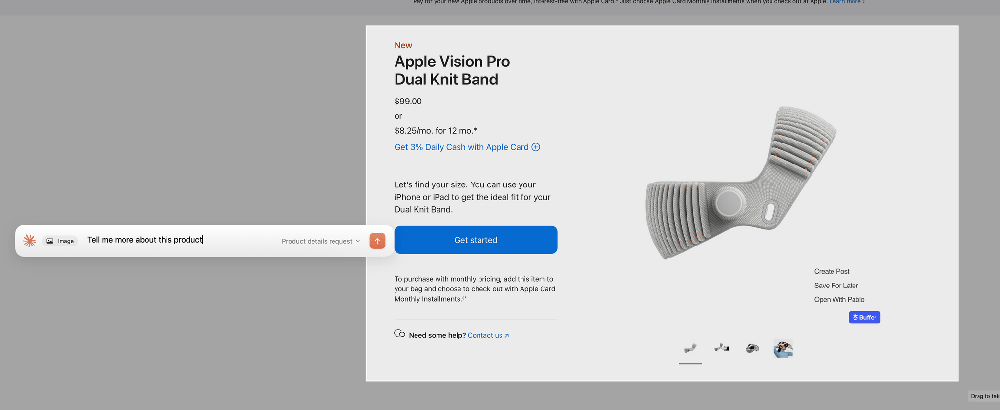
Quick Entry (macOS): Claude Desktop for Mac includes a Quick Entry feature that provides instant access to Claude from any app. By default, double-tapping the Option key brings up Claude’s quick entry overlay. This is a small chat input bar that appears over your current screen (as shown in the image above), ready for your query. The moment you trigger it, it also lets you capture visual context – you’ll see crosshair pointers to select an area for screenshot, or you can simply click on any open window to share that window’s content. After selecting a region or window, the screenshot is attached to your query in the overlay. You can then type (or dictate) your question and hit Enter, and the query plus screenshot will be sent to Claude. This all happens without you needing to manually switch to the Claude app – it’s a seamless, system-wide shortcut for querying Claude. Once Claude processes the question, it will open the full Claude app to display the response. Quick Entry dramatically reduces the friction of multi-step operations. For example, if you’re reading a web article and want Claude’s summary: trigger quick entry, snap a screenshot of the article, and ask Claude to summarize – all in a few keystrokes. Tip: You can customize the quick entry keyboard shortcut in Claude’s Settings (under Desktop App > Quick access shortcut) – options include double-Option (default), Option+Space, or a custom combo. If you prefer not to use double-Option, setting Option+Space might be easier for some workflows. Remember to grant Accessibility and Screen Recording permissions so this works smoothly.
- Windows Shortcuts: As of the current version, Windows does not yet have an equivalent Quick Entry overlay. However, you can still integrate Claude into your workflow by pinning it to the taskbar for one-click access and using standard OS shortcuts. For instance, assign a global hotkey to a Claude Desktop shortcut icon (Windows allows you to set a shortcut key in the properties of a desktop shortcut). This way, pressing something like Ctrl+Alt+C could instantly bring up the Claude app window. While not as fancy as Mac’s overlay, it still saves time. Keep an eye on updates – Anthropic may introduce quick entry for Windows in the future, bringing features like screen capture to that platform as well.
- System Tray and Background Usage: When you close the Claude Desktop window, it may continue running in the background (on Mac it stays in the Dock/menu bar; on Windows it may minimize to the system tray). This is intentional – Claude stays ready so that your chats sync and you can invoke it quickly when needed. It’s lightweight to keep open. If you need to quit completely, use Quit from the menu, but generally leaving it running means faster access (no startup delay each time). Having Claude “always on” is useful for those who consult it frequently throughout the day.
- File and Text Sharing: Aside from dragging files, you can copy-paste content between Claude and other apps. For example, copy a chunk of text from a PDF reader and paste into Claude to ask questions about it. Likewise, you can copy Claude’s answers (which might contain code, text, or even images in some cases) and paste them into your editor or email. Claude Desktop makes this easier by supporting standard keyboard shortcuts and potentially offering an “Export” or “Copy” button for answers (particularly if an answer is provided as an artifact or file, you may have a download option).
- Notifications: The desktop app can send you notifications for certain events – for example, if Claude is processing a long response or if you switch away, it might notify you when the answer is ready. Ensure notifications are enabled if you want this (on Mac, check System Preferences > Notifications > Claude; on Windows, check Notification settings). This way, you can multitask and get alerted when Claude has finished a lengthy task, keeping your workflow smooth.
- Incognito and Data Control: If you frequently use Claude for work, remember the Incognito mode for sensitive queries as mentioned. It might be handy to pin a reminder or have a separate project for incognito chats. Also, in Settings > Privacy you can clear your conversation history or stored data if needed. Claude Desktop, like the web, allows you to delete chats or turn off Claude’s long-term memory for a session if you prefer not to feed certain info into the model memory. Use these controls to integrate Claude into corporate workflows where data handling is a concern (e.g. clearing cache after using a confidential file).
Advanced Usage: Extensions, Local Tools, and Templates
For power users and developers, Claude Desktop offers Desktop Extensions and other advanced capabilities to supercharge your workflows beyond what the web interface can do.
- Desktop Extensions (MCP): Claude Desktop supports an extension system based on Anthropic’s Model Context Protocol (MCP). Think of desktop extensions as plugins that let Claude interface with your local environment and external tools. You can install extensions to give Claude new abilities, such as reading and writing local files, interfacing with your calendar or email, or integrating with development tools. Anthropic provides a curated extensions directory accessible via Settings > Extensions in the app. For example, there is an official Filesystem extension that, once installed, allows Claude to browse your local file system (with your permission) so you can ask things like “open the file Budget2025.xlsx and summarize its contents” – Claude will use the extension to read that file directly. Other extensions include things like iMessage integration or Gmail – enabling Claude to send messages or retrieve info from those apps. To install an extension, simply browse the directory in the app and click Install on one you need (some may require entering an API key or config if they connect to another service). Once installed, the tools provided by that extension become available in your Claude conversations – often you can just ask in natural language to use them. Security: All official extensions are code-signed and run in a sandbox, and enterprise admins can control which extensions are allowed. If you’re a developer, you can also build custom extensions (packaged as
.mcpbfiles) for your specific needs and load them via Advanced > Install Extension. This is great for internal workflows, e.g., connecting Claude to a proprietary database or an in-house tool. Desktop extensions essentially bring Claude closer to being an AI assistant that can act on your local machine (within the limits you set). - Local Context Ingestion: With extensions or even basic file support, you can feed Claude very large context without manually copy-pasting. For instance, if you have a large codebase, you could use an extension or the Claude Code environment to ingest it (perhaps indexing it through a local tool) and then ask Claude questions about any part of it. One community approach is running a local MCP server that streams documents to Claude in chunks, giving the AI access to more context than fits in a single prompt. While this requires some setup, the desktop app makes it easier by allowing one-click install of local MCP servers that handle context (Anthropic refers to this as turning complex JSON configs into easy installs). The bottom line: Claude Desktop can leverage local data stores and tools to extend Claude’s knowledge beyond what you manually provide in each message.
- Quick Actions: In the Claude Desktop interface, you might notice certain quick action buttons or commands especially after installing extensions. These could be little icons in the chat input for things like attaching a file, taking a screenshot (on Mac), or initiating a specific tool. For example, after adding an extension, a quick action might appear to run a specific task (like “Run in Terminal” or “Search files”) – this allows immediate trigger of some function rather than typing the request. Also, within Claude’s responses, if it creates an artifact (like a code snippet or a markdown document), you’ll get quick-action options to open it in an editor or save it. Templates is another concept related to quick actions: you can create prompt templates for common tasks. While the app doesn’t have a dedicated “prompt template library” UI as of now, you can manually save frequently used prompts (perhaps in a text file or as an artifact note) and reuse them. For instance, you might have a template prompt for code review (outlining how Claude should respond with analysis, tests, etc.). Some users integrate with third-party macro tools: e.g., use a text expander snippet that when typed in Claude inserts your template. Additionally, Claude’s Artifacts feature (available on all plans) might be used as a form of template: you can create an artifact (like a mini app or doc) that contains a structured approach, and reuse it across chats. Example: an artifact that helps generate a standardized report – you open it, input new data, and let Claude fill it in. Exploring the Artifacts sidebar in Claude Desktop will show any such saved pieces of content or mini-tools you’ve created.
- Claude Code and Automation: If you have access to Claude Code (Anthropic’s coding-enhanced environment, often included in the Max plan), you can run code and get outputs within Claude Desktop. For advanced workflows, this means you can ask Claude to write a script, execute it, and even modify files locally (within a sandbox). For example, you could say “Claude, here’s a CSV of sales data, please write a Python script to analyze it for trends,” and if Claude Code is enabled, it can produce and run that script, then output results – all in the desktop app. This feature blurs the line between an AI chat and a local automation tool. Always double-check what code you run, and note that code execution might be restricted for free users. On higher plans, Claude’s ability to create and edit files (like generating a multi-sheet Excel or a PowerPoint deck) is unlocked. This is incredibly useful: you could ask, “Create a 5-slide PowerPoint outlining our Q4 roadmap,” and Claude will actually generate a PPTX file artifact that you can open in PowerPoint. Similarly, Claude can edit PDFs or images in a limited way by producing new versions via its sandboxed tools. These advanced features take productivity to the next level – essentially having Claude act as a junior colleague who can produce first drafts of documents or code.
In summary, Claude Desktop’s advanced features enable tight integration with local systems and custom workflows. By installing extensions, using local context servers, and leveraging artifacts or templates, you can tailor Claude to your specific professional needs. Developers can integrate Claude with their toolchain (editors, version control, etc.), and non-developers can let Claude directly handle files and repetitive tasks on the desktop. Always keep security in mind – only enable the extensions you trust and avoid using sensitive data in tools unless you have proper sandboxing or company approval. With careful setup, Claude Desktop becomes not just a chat interface but a powerful AI assistant living on your computer.
Claude Desktop vs. Claude Web Interface – A Comparison
How does the Claude Desktop App stack up against using Claude through the web browser? Here’s a side-by-side comparison of key aspects, focusing on performance and workflow integration:
Performance & Speed: Users report that Claude Desktop feels faster and more responsive than the web interface in many cases. The desktop app caches recent context and conversation state locally, so when you revisit a chat or reuse documents, it can load context more quickly without re-fetching everything from the server. In practical terms, drafting and iterating on content is snappier, and there’s less waiting compared to the web UI which might reload conversation data each time. The desktop app also isn’t bogged down by browser overhead (no extra JavaScript from other tabs or extensions), giving it a tidier memory footprint and reduced latency. That said, the core AI processing speed is the same since both ultimately call Anthropic’s servers for Claude’s intelligence – but the surrounding interface and context handling is optimized in Desktop.
Local Integration: The desktop app clearly wins in integration with your files and system. It provides desktop extensions and connectors that the web can’t. With Claude Desktop you can one-click share local files, take screenshots, use voice input, and connect to native apps (like Mail, calendar, or even custom tools). The web interface is sandboxed in the browser – it allows file uploads, but you must manually select files and it cannot reach into your local system or use global shortcuts. Desktop Claude feels like a part of your OS: it can “see” your screen (with permission) and hook into other apps, enabling richer interactions. For example, analyzing data from an internal database or a local app is feasible with Desktop (via an extension), whereas on the web you’d have to export data manually. If your workflow involves a lot of local resources (files on disk, local dev environment), the desktop app offers a huge advantage.
Convenience & Shortcuts: With Claude Desktop, you get system-wide shortcuts and quick access. On Mac, the quick entry (double-Option or Option+Space) means you can call up Claude on top of any app instantly. This is a game-changer for multitasking – you don’t have to stop what you’re doing to open a browser tab. Windows lacks the fancy overlay but you can still pin or alt-tab quickly; still, on the web you’d have to navigate to the Claude site each time. Desktop also lives in your Dock or System Tray, one click away. If you use Claude dozens of times a day, this saves cumulative time. The web interface doesn’t offer global hotkeys or always-on presence; it’s confined to a tab. Additionally, the desktop app can send notifications and run in background, whereas the web might require you to keep the tab open and check it.
Offline and Reliability: Neither Claude Desktop nor Claude Web can function fully offline, since the AI model runs on cloud servers. However, Claude Desktop has a form of “Offline Mode” for intermittent connectivity: it will cache your recent chats and even allow you to draft messages without internet. If you go offline (say on a flight), you can still open Claude Desktop, review past conversations, and even compose new prompts or edits. Those will sync and get answered once you’re back online. The core generation won’t happen offline (no local LLM on your machine), but this is still useful for continuity. The web interface by contrast has minimal offline capability – if you lose connection, the page may not even load your history until reconnect. The Desktop’s ability to persist drafts and chat history locally gives it an edge for reliability in spotty network situations. Also, if the browser crashes or reloads, you might lose your composed prompt, whereas Claude Desktop is a separate app less prone to accidental refresh.
User Interface & Features: The chat experience and Claude’s capabilities are largely parity across web and desktop – you get the same Claude AI responses. But the desktop app often gets new features first or uniquely. For example, the incognito mode (private chats) was introduced on Desktop and emphasizes privacy for sensitive data. Features like voice dictation and window sharing are desktop-only as of 2025. The web interface cannot capture windows or do voice input natively (you’d rely on your OS dictation and manual image uploads). On the other hand, the web interface might be convenient for quick access on a computer where you can’t install software, and it’s accessible anywhere via browser. But for daily heavy users, the desktop client provides a richer, more integrated UI (with sidebars for Artifacts, Projects, etc., just like the web, plus the extras we discussed).
In conclusion, the Claude Desktop App is generally superior for productivity-focused users: it offers speed improvements, deeper file/system integration, and handy shortcuts that the web version lacks. The Claude Web Interface remains useful for lightweight or occasional use, or when you’re on a device where you can’t install the app. Importantly, your account and data sync across both – you can start a chat on desktop and continue it on the web or mobile if needed. Many professionals will find that once they adopt the desktop app, it becomes their primary way of interacting with Claude due to the seamless workflow it enables. The browser becomes a backup. As always, choose what fits your work style, but if you’re aiming for faster and more integrated AI assistance in your daily routine, Claude Desktop is the recommended choice.
Conclusion
Claude Desktop for Mac and Windows elevates Claude from a web-based chatbot to a true desktop assistant. With a quick installation and simple login, you integrate a powerful AI directly into your workstation.
We’ve covered how to set it up, configure your preferences, and leverage its unique features like file drag-and-drop, screenshot sharing, and global shortcuts.
By taking advantage of these capabilities, productivity professionals and developers can save time – whether it’s summarizing documents in seconds, debugging code with AI help, or brainstorming ideas without breaking flow. The desktop app’s performance optimizations and offline resilience mean Claude is always at the ready, even when your internet or browser isn’t.
And with advanced extensions and integrations, Claude can work hand-in-hand with your local tools and data, offering a level of context and automation not possible through the web alone.
As you begin using Claude Desktop, start with small tasks (install, login, quick test) and progressively fold it into more of your workflow – you’ll soon notice faster workflows and new possibilities opening up. Need Claude to analyze an internal report? Just drop it in. Have a sudden idea while coding? Hit the shortcut and dictate it.
The combination of Claude’s AI prowess with desktop convenience can augment your daily work in powerful ways. This guide should equip you to set up Claude Desktop fully and use it effectively.
Now it’s your turn to put Claude to work on your desktop and enjoy a more seamless, integrated AI experience. Happy productivity!